Home printers
Printer DPI Explained: What Resolution Numbers Really Mean
Written by Printer Co editorial team · Updated
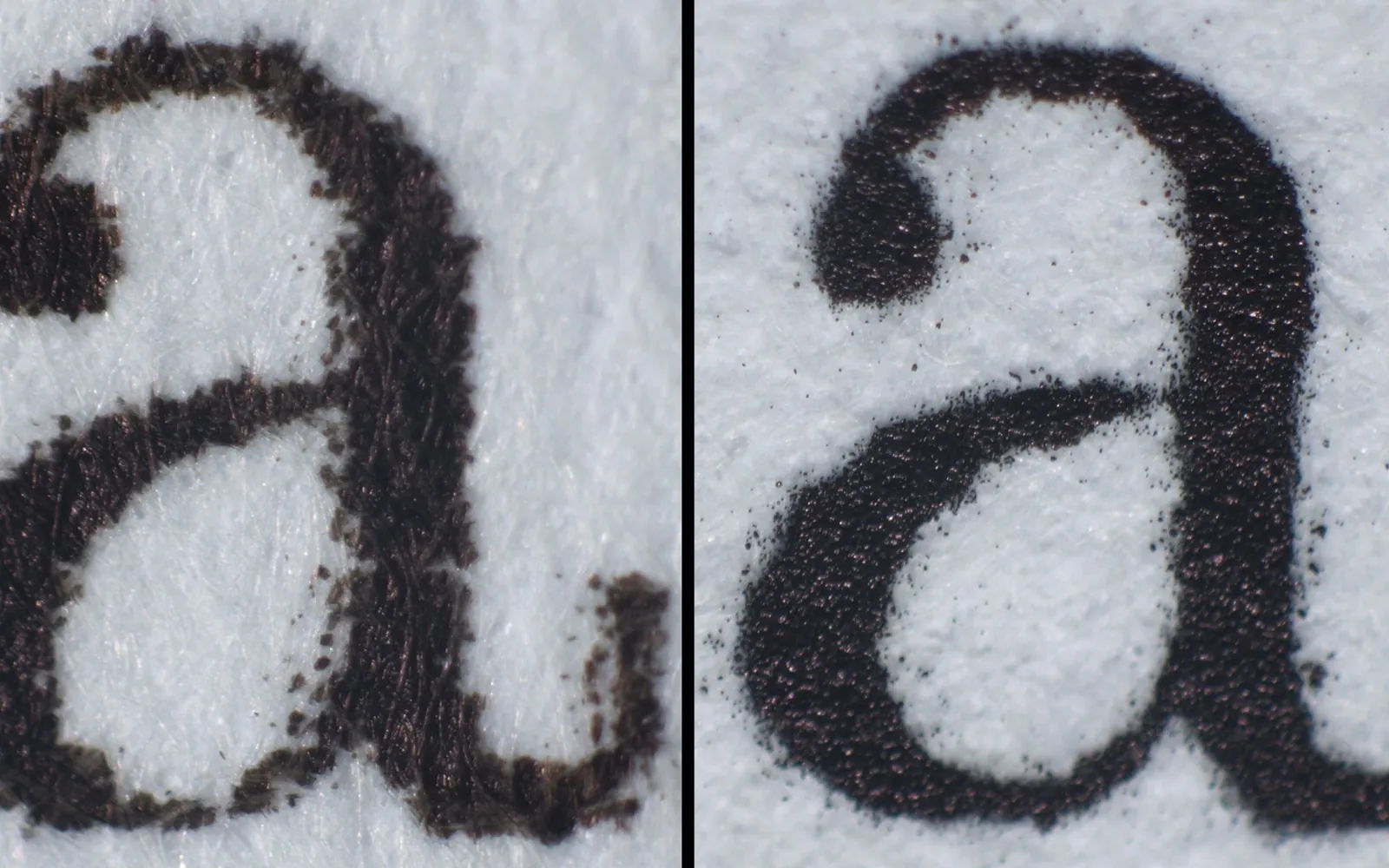
Printer dpi is one of the biggest numbers on a printer box, and one of the least useful for choosing a printer. It sounds like a simple sharpness score: more dots, better prints. In reality, dpi figures from different technologies are not directly comparable, almost every current home printer has enough for text, and photo quality depends more on paper, ink and your image file than on the headline figure. Here is what the numbers mean and when they matter.
What dpi means
Dpi stands for dots per inch: how many separate dots a printer can place along one inch. A specification such as 1200 x 1200 dpi means 1,200 dots per inch horizontally and 1,200 vertically. Many inkjets quote unequal figures, such as 4800 x 1200, because the print head can place drops more finely in the direction it travels than in the direction the paper advances.
Real examples from manufacturer specifications:
- Brother lists up to 1200 x 1200 dpi for its HL-L2460DW, a compact monochrome laser.
- Epson’s reference guide for an older photo inkjet, the Stylus Photo 960, lists a maximum of 2880 x 1440 dpi, with 192 black nozzles and 480 colour nozzles across five colours.
Those numbers are both “maximums”, and they describe very different machines.
Why inkjet and laser dpi are not comparable
A printer cannot print a grey or a light blue directly. It makes tones by arranging dots of a few colours: more dots close together look darker, fewer look lighter. This is called halftoning or dithering.
- Laser printers place toner with a laser beam on a drum and build tones with patterns of dots. At 1200 dpi, black text edges are very clean.
- Inkjet printers fire tiny droplets, often of several sizes, and many photo models add lighter inks (light cyan, light magenta) to make smooth skin tones and skies with less visible dot pattern. Their high dpi figures partly reflect how finely they can place droplets, not how many separate details you can see.
So a 4800 dpi inkjet is not four times sharper than a 1200 dpi laser. For black text, many people find a laser crisper; for photos, a photo inkjet is smoother. Our laser vs inkjet guide covers the wider trade-offs.
DPI vs PPI: printer vs image
Ppi (pixels per inch) is about your digital file, not the printer. It is the number of image pixels spread over each inch of the print.
ppi = image width in pixels / print width in inches
A photo 3,000 pixels wide printed 10 inches wide has 300 ppi. Printed 20 inches wide, it has 150 ppi.
The printer then uses many dots of ink to reproduce each pixel’s colour. That is why printer dpi figures are much higher than the ppi your image needs.
A widely used rule of thumb is around 300 ppi at the final print size for photos viewed up close. Prints viewed from further away, such as posters, can look fine with less. If your photo has too few pixels for the size you want, no printer dpi setting will add real detail. For more on getting good photo prints, see photo printing at home.
Quality settings in the print dialog
Print dialogs rarely show dpi directly. Instead they offer Draft, Standard and High (Best) quality, sometimes with a paper type. Higher settings generally make the printer use smaller drops, more passes and more ink, so they are slower and cost more.
- Draft: fine for notes and drafts; uses the least ink.
- Standard: right for most documents.
- High or Best: for photos and graphics on suitable paper.
Choosing the right paper type often matters as much as quality: the printer adjusts how much ink it lays down for plain, matte or glossy paper. Our paper guide explains the settings, and pigment vs dye ink explains why ink type changes how sharp and durable prints look.
Scanner resolution: the same word, a different meaning
On a scanner, dpi is how many samples per inch the sensor records. Two terms matter:
- Optical resolution is what the hardware actually captures. Canon’s TS3300 specification, for example, lists an optical resolution of 600 x 1200 dpi and notes it represents the maximum sampling rate based on ISO 14473.
- Interpolated or enhanced resolution is a higher figure made by software guessing extra pixels. It adds file size, not detail.
Scanning at more than the optical resolution is pointless. Scanning documents at 300 dpi is usually enough; small photos you want to enlarge need more. Cultural heritage institutions follow detailed digitisation guidelines, such as those of the US Federal Agencies Digital Guidelines Initiative, but for home use the simple rule is: scan at the resolution that gives you enough pixels for the largest print you might make. See how to scan documents at home.
Pixels per inch when you enlarge: posters and edge-to-edge photos
The ppi rule matters most when you print bigger than usual. Pixel count stays the same however large you print, so every time you double the width of a print, the ppi halves.
- Posters on several sheets. Brother’s driver, for example, offers poster layouts such as 1 in 2x2 and 1 in 3x3 pages. A 2x2 poster is twice as wide and twice as tall as one sheet, so an image that gave about 300 ppi on a single A4 or Letter page gives about 150 ppi as a 2x2 poster, and about 100 ppi as a 3x3 poster. That is often fine for a sign viewed from across a room, but soft up close. Our guide to printing a poster on multiple pages shows how to check the image first.
- Borderless photos. Borderless printing enlarges the image slightly so it runs off the paper edge, which trims a little from every side. The effect on sharpness is tiny, but the cropping is not, so leave room around faces and text; see how to print borderless photos.
- Fit to page. Scaling a document up to fill a larger sheet spreads the same pixels further. For text in a word-processor file or a text-based PDF, the fonts are redrawn at the new size and stay sharp; for scanned pages and images, enlargement shows. See fit to page vs actual size.
Should dpi affect which printer you buy?
Rarely. Better questions:
- Do you print photos? Look at the number of ink colours, photo paper support and borderless printing, and print samples if you can see them.
- Mostly text? Any current laser or inkjet is sharp enough. Look at cost per page and reliability instead; see best printer for home use.
- Fine line work or small type? Lasers often give the cleanest edges on plain paper.
Quick answers
- 1200 dpi is plenty for text.
- High inkjet dpi numbers reflect droplet placement, not a matching gain in detail.
- Give photos about 300 ppi at print size.
- Judge scanners by optical resolution only.
- Paper, ink and quality setting change prints more than the dpi on the box.
Frequently asked questions
What does dpi mean on a printer?
Dots per inch: the number of separate dots a printer can place in a line one inch long. A specification of 1200 x 1200 dpi means 1,200 dots per inch across and 1,200 down. Some printers quote different horizontal and vertical figures.
Is 1200 dpi good for printing?
For text and everyday documents, yes, it is plenty. Brother lists up to 1200 x 1200 dpi for a compact home laser. Photo inkjets quote higher figures, but the number alone does not tell you which prints better photos.
What is the difference between dpi and ppi?
Dpi describes the printer's dots on paper. Ppi describes the pixels in a digital image relative to the print size. A 3,000 pixel wide photo printed 10 inches wide has 300 ppi. The printer then uses many ink dots to reproduce each pixel.
What resolution should I scan photos at?
Scan at a resolution that gives enough pixels for the largest print you might make. For example, to print a 4 inch wide photo at 8 inches wide and 300 ppi, scan at 600 dpi. Use the scanner's optical resolution as the upper limit.
Does printing at the highest quality setting use more ink?
It usually uses more ink and takes longer, because the printer lays down more, smaller drops and makes more passes. Use standard or draft quality for everyday documents and save best quality for photos.
Sources
- Brother HL-L2460DW online user's guide: Specifications (resolution)
- Epson Stylus Photo 960 reference guide: Printer Specifications
- Canon TS3300 series online manual: Specifications (scanner optical resolution)
- Federal Agencies Digital Guidelines Initiative: Technical Guidelines
- Brother MFC-J4335DW online user's guide: Print as a Poster (Windows)
Editorial team
The Printer Co editorial team researches and writes independent guides to home printers, ink and printing costs, using manufacturer documentation, standards bodies and consumer-protection sources.