Home printers
Is an All-in-One Printer Worth It? A Home Buyer's Guide
Written by Printer Co editorial team · Updated
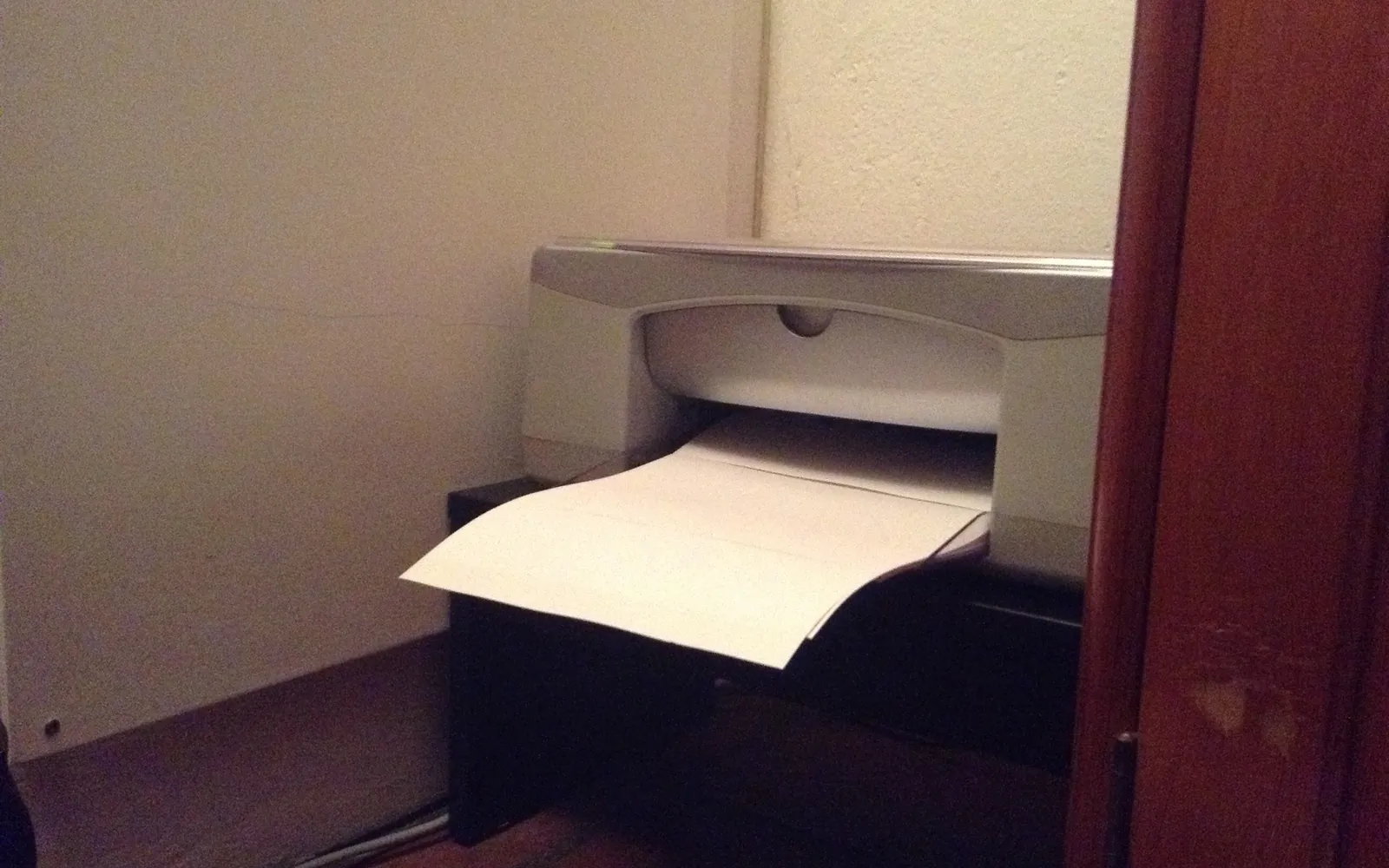
Is an all-in-one printer worth it for a home? For most people the honest answer is yes, but not for the reasons the box suggests. The scanner and copier are useful for a handful of everyday jobs: a signed form, a copy of an ID card, a school worksheet, an old photo. Whether you need them depends on how often those jobs come up, and whether the phone in your pocket can do them well enough. This guide helps you decide, and shows which features are worth paying for.
What an all-in-one printer is
An all-in-one, also called a multifunction printer, combines a printer with a flatbed scanner on top. Because it can scan and print, it can also copy without a computer. Some models add a fax modem, an automatic document feeder (ADF) on the lid, or two-sided scanning.
All-in-ones come in every printer type: cartridge inkjets, ink tank models and lasers. The scanner does not change how much each printed page costs; that still comes down to ink or toner. If you have not chosen a printer type yet, start with our guide to the best printer for home use.
When an all-in-one is worth it
An all-in-one earns its place if any of these sound familiar:
- You scan or copy more than a few pages a month. Forms for school, insurance or benefits, receipts for expenses, letters for your records.
- You need clean, flat scans. A flatbed scanner gives even lighting and no perspective distortion. That matters for ID documents, certificates, sheet music and anything you will print again.
- Someone in the house does not use a computer. Copying from the printer’s own buttons is the simplest way to duplicate a page.
- You want to digitise old photos or documents. A flatbed handles prints and fragile paper far better than a phone held over a table.
- You scan multi-page documents. With an ADF, you can drop in a stack and get one PDF.
When a print-only model makes more sense
A print-only printer can be the better choice when:
- You almost never scan. If it is a few pages a year, a phone app will do.
- Space is tight. A scanner lid adds height and needs clearance to open.
- You want a specific printer type. Some compact monochrome lasers and some photo-focused printers come in print-only versions. If one of those fits your printing better, do not let the scanner decide for you. Our laser vs inkjet guide helps here.
Can your phone replace the scanner?
For quick, occasional scanning, often yes. Both major phone platforms have free, built-in options:
- iPhone and iPad: Apple’s support guide shows how to scan documents in the Notes app, with automatic capture and edge adjustment. The Files app offers a scan option too.
- Android: Google’s Drive help explains how to scan with the Drive app, crop, apply a filter, and save as PDF or JPG.
Phone scans are good for single pages you only need to email. They are weaker for:
- photos and anything where colour and sharpness matter,
- bound books and documents that will not lie flat,
- long documents, where photographing every page gets tedious,
- copies that will be printed and handed in, where shadows and skew look untidy.
If you already print from your phone, our guides to printing from an iPhone and printing from an Android phone explain how a phone and printer work together.
Features worth checking on an all-in-one
Not every scanner feature matters at home. These are the ones that do:
- Automatic document feeder (ADF). Worth it if you scan multi-page documents regularly. Check whether it scans both sides in one pass or needs you to flip the stack.
- Scan destinations. Scan to computer is standard. Scan to a phone app, to email or to a cloud folder can save steps if you use them.
- Computer support without extra software. Microsoft’s support page explains how Windows adds scanners, including network scanners, and how to scan with the Windows Scan app. If you use a Mac or a Chromebook, check the maker’s compatibility list for your system.
- Copy features you will use. ID card copy (both sides on one page) is handy for paperwork. Enlarge and reduce helps with school work.
- Flatbed size. Most home models take up to A4 or US Letter. If you scan legal-size documents, check the glass size, not only the paper tray.
- Fax. Only pay for it if you know you need it.
Before you set it up, our printer drivers guide explains when you need the maker’s software and when the system’s built-in support is enough.
Running costs and energy
Scanning does not use ink. Copying does, exactly like printing, so copy costs follow the same cost per page as your prints.
The extra functions add electronics that draw power while the printer waits. If energy use matters to you, look for a model that meets the ENERGY STAR requirements for imaging equipment, which cover printers, scanners, copiers and multifunction devices, and set the sleep and auto-off timers. Our eco-friendly printing guide has more ways to cut waste.
How you will actually scan
Before paying extra for a scanner, picture the routine. On Windows, the free Scan app finds most all-in-ones; on a Chromebook, the built-in Scan app sits under Settings, Printers and scanners; on a Mac, the printer usually appears in Printers and Scanners. Lay the page face down, close the lid, choose 300 dpi and PDF, and you are done in under a minute. Our step-by-step guide to how to scan documents at home covers each system and the settings for photos.
One more point: an all-in-one often stores more than a print-only model, such as scan-to-email addresses and fax numbers. Set an admin password and keep its firmware updated, as described in how to secure a home printer.
Decision rules
- You scan or copy at least a few pages most months: buy an all-in-one.
- You scan multi-page documents weekly: buy an all-in-one with an ADF, ideally one that scans both sides.
- You scan a few pages a year and space is tight: a print-only model plus a phone scan app is fine.
- You want to digitise photos or keepsakes: you want a flatbed, whether in an all-in-one or a separate scanner.
The scanner rarely changes your ink bill, but it can save you a trip to a copy shop. For most homes, that is reason enough.
Frequently asked questions
Is an all-in-one printer worth it for home use?
For most households that scan or copy documents even occasionally, yes. Many home inkjets are sold mainly as all-in-ones. A print-only model makes more sense if you never scan, are short of space, or want a specific laser or photo printer that only comes without a scanner.
Can my phone replace a scanner?
For the odd letter or receipt, often yes. Apple's Notes app and the Google Drive app can both scan documents into a PDF with the camera. A flatbed scanner is still better for photos, books, ID cards, very flat clean copies and long documents.
Do I need an automatic document feeder?
Only if you regularly scan or copy documents of several pages, such as statements or contracts. For single pages, the flatbed glass is fine and simpler.
Does an all-in-one cost more to run than a print-only printer?
Printing costs depend on the ink or toner, not on the scanner. Scanning uses no ink at all; copying uses ink like printing. Compare the cost per page of the cartridges, not the number of functions.
Can I scan to my computer without the maker's app?
Often yes. Microsoft's support pages explain how to add a scanner in Windows and scan with the Windows Scan app, and macOS can scan from the Printers and Scanners settings when the device is supported.
Sources
Editorial team
The Printer Co editorial team researches and writes independent guides to home printers, ink and printing costs, using manufacturer documentation, standards bodies and consumer-protection sources.