Home printers
How to Scan Documents at Home: Printer, PC or Phone
Written by Printer Co editorial team · Updated
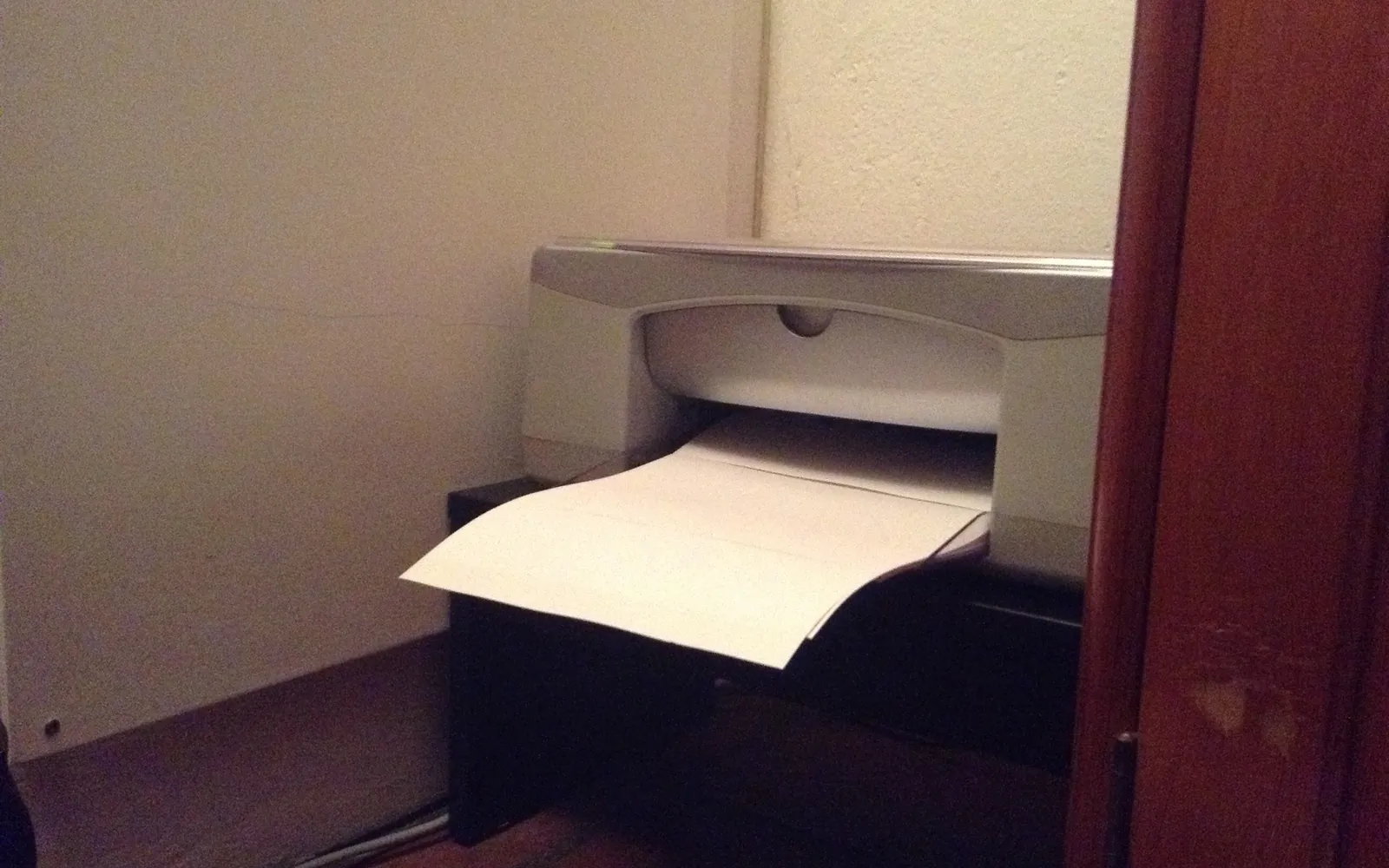
Learning how to scan documents at home saves trips to a copy shop every time a landlord, school, bank or employer asks for a signed form or a copy of a certificate. If you own an all-in-one printer, you already have a flatbed scanner. If you do not, your phone can do a surprisingly good job. This guide covers both, plus the settings that matter: resolution, colour mode and file type.
What you can scan with
An all-in-one printer. Most home inkjets and many lasers sold as “all-in-one” or “multifunction” have a flatbed scanner under the lid. Canon’s TS3300 series, a typical small home model, accepts text documents, magazines, photos, postcards and even discs on its glass, up to 216 x 297 mm (A4 or Letter). Some models add a document feeder that pulls a stack of pages through automatically. If you are still deciding whether you need one, see is an all-in-one printer worth it.
A phone. iPhone and iPad can scan in the Notes and Files apps; Android phones can scan with the Google Drive app. These apps find the page edges, straighten the image and save a PDF.
A dedicated scanner. Worth it mainly for large photo archives or regular high-volume paperwork. For most homes, a printer or phone covers everything.
Scanning with an all-in-one printer
Step 1: Prepare the page and the glass
Take out staples and clips, peel off sticky notes and flatten folded corners. Wipe the glass with a soft, dry, lint-free cloth. A single hair or speck of dust on the glass shows up on every scan.
Step 2: Place the original correctly
Canon’s manual for the TS3300 series says to place the original face down on the platen and align its corner with the alignment mark, then close the document cover gently. Every scanner has a similar mark, usually an arrow in one corner of the glass. Leaving the lid open lets room light in, which makes edges dark and grey.
Step 3: Start the scan
You usually have three ways to start:
- From the printer’s control panel. Look for Scan, then choose where to send the file: a connected computer, a memory card, email or cloud, depending on the model.
- From the printer maker’s app on your phone or computer. This often gives the most options, such as multi-page PDFs.
- From the operating system, with no extra software, as described below.
Step 4: Choose settings, then check the result
Pick colour mode, resolution and file type (see the settings section below), scan, and open the file before you put the original away.
Scanning from a Windows PC
Microsoft’s support article explains that Windows usually installs a local or network scanner automatically. If it does not, open Settings, Bluetooth and devices, Printers and scanners, and choose Add device. Microsoft notes that the scanner in an all-in-one printer may show up under the printer’s name.
Then open the free Windows Scan app (search for “Scan” in the Start menu, or install it from the Microsoft Store if it is missing). Put the page face down on the glass, or in the document feeder, select your scanner in the Scanner list, choose the file type and click Scan. By default, Microsoft says, scans are saved in the Scans folder inside your Pictures folder.
If Windows cannot see the scanner over Wi-Fi, check that the printer and PC are on the same network; our guide to connecting a printer to Wi-Fi covers that. For background on when you need maker software, see do I need printer drivers.
Scanning from a Mac
On a Mac, an AirPrint all-in-one usually appears under Printers and Scanners in System Settings, and you can scan from there or from the Image Capture and Preview apps. The maker’s own app may add extras such as automatic multi-page PDFs.
Scanning from a Chromebook
Google’s Chromebook Help describes a built-in Scan app. Open Settings, Printers and scanners, Scan (or search for “Scan” in the Launcher), pick your scanner, and use More settings to set colour mode, page size and resolution. Select Scan, then Show in folder to find the file. Google notes that you should first make sure your printer can scan, and that a Chromebook can also scan using its own camera. Our guide to printing from a Chromebook covers adding the printer itself.
Scanning with your phone
iPhone and iPad. Apple’s instructions: open Notes, open or create a note, tap the attachment button and then Scan Documents. Hold the page in view; in Auto mode the scan is captured automatically, or you can press the shutter. Drag the corners to fit the page, tap Keep Scan, then Save. You can also scan from the Files app and save the PDF straight to a folder.
Android. Google Drive’s help page says to open the Drive app, tap the Camera button at the bottom right and point it at the page; a blue line shows where the image will be cropped. You can then crop and rotate, apply a filter (including greyscale), clean up stains or fingers, add more pages and save the result as a PDF to Drive.
Tips for phone scans: put the page on a dark, plain surface so the edges are clear, use even daylight rather than a lamp that throws your shadow across the page, and hold the phone parallel to the paper.
Which settings to choose
| Job | Colour mode | Resolution | File type |
|---|---|---|---|
| Typed letters, forms, contracts | Greyscale or colour | 300 dpi | |
| Pages with signatures, stamps, coloured logos | Colour | 300 dpi | |
| Receipts for records | Greyscale | 200 to 300 dpi | |
| Photos to view on screen | Colour | 300 dpi | JPEG |
| Small photos to enlarge or reprint | Colour | 600 dpi or more | JPEG or TIFF |
Some points behind that table:
- Resolution. Scanner resolution is measured in dots (or pixels) per inch. Doubling the dpi roughly quadruples the file size. Canon’s TS3300 specification lists an optical resolution of 600 x 1200 dpi, so higher figures shown in some software are interpolated rather than captured. Our explainer on printer DPI covers what dpi does and does not tell you.
- Black and white mode (one bit per pixel) makes tiny files but can turn light pencil, stamps and signatures into blotches. Greyscale is safer for anything official.
- PDF keeps a multi-page document together and opens on every device. If your software offers “searchable PDF” or OCR (text recognition), turn it on for documents you may want to search later.
Common problems and quick fixes
- Dark edges or a grey cast: the lid was open or the page is thick. Close the lid. For a book, close the cover as far as it goes, but do not lean on it: Canon’s manual warns against putting 2 kg (4.4 lb) or more of weight or pressure on the glass. Canon also notes the scanner cannot read a 1 mm strip at the edges of the glass, so keep the page clear of the very edge.
- Lines or spots on every scan: dirt on the glass. Clean it with a dry cloth; for the document feeder, clean the narrow glass strip it reads through, as described in your manual.
- Crooked pages: align to the corner mark, or turn on automatic straightening (deskew) if the software offers it.
- Scanner not found: restart the printer and computer, check both are on the same network, or try a USB cable.
- Files too large to email: lower the resolution to 200 to 300 dpi, scan in greyscale, or use the “reduce file size” option in your PDF app.
Scan or copy?
If all you need is a paper duplicate, the copy button is quicker than scanning and printing: the all-in-one scans and prints in one step without a computer. Copying also gives you options that are easy to forget, such as enlarging or reducing, making text darker or lighter, copying two-sided, and placing both sides of an ID card on one sheet; Brother’s copy settings list all of these. Our guide on how to make a copy on a printer walks through them.
Scan instead when you need a file: to email a form, keep a record, or print it later at a different size. A scan saved as PDF can be printed at actual size or fitted to another paper size, which matters when an A4 document has to come out on Letter paper or the other way round; see fit to page vs actual size. And if a phone scan already covers what you do, you may not need a scanner at all; our guide do I need a printer at home helps you decide.
What you should not scan or copy
Canon’s TS3300 manual includes a page on legal restrictions. It warns that scanning, printing or copying some items may be punishable by law, and its list (which it says is not complete) includes paper money, postage stamps, passports, immigration papers, vehicle licences and titles, stock certificates, and copyrighted works or works of art without the owner’s consent. Rules vary by country, so if you are unsure about a document, check local law first.
Keep scans safe
Scanned IDs, bank statements and medical letters are sensitive. Save them to a folder you back up, delete copies you no longer need, and be careful about scanning to email or cloud services you do not control. If your printer stores scan destinations or email addresses, wipe them before you sell or recycle it; see how to dispose of an old printer.
Frequently asked questions
How do I scan a document with my printer?
Place the page face down on the glass, close the lid, then start the scan from the printer's control panel, its app or your computer. On Windows, the Scan app lists the scanner part of an all-in-one; on a Chromebook, open Settings, Printers and scanners, Scan.
What resolution should I use to scan documents?
For ordinary text pages, 300 dpi is a common, sensible choice: sharp enough to read and print, and small enough to email. Use 150 to 200 dpi if file size matters more than quality, and 600 dpi or more only for small photos or detail you plan to enlarge.
Is it better to scan with a printer or a phone?
A flatbed gives flat, evenly lit, correctly sized scans and is better for photos, bound pages and anything official. A phone is quicker for receipts, single forms and when you are away from home. Both are fine for everyday paperwork.
Should I save scans as PDF or JPEG?
Use PDF for documents, especially multi-page ones, because it keeps the pages together and opens anywhere. Use JPEG or PNG for single photos or images you want to edit.
Why are my scans dark or grey?
Usually the lid was open, the glass is dirty or the colour mode is wrong. Close the lid, wipe the glass with a soft dry cloth, and choose colour or greyscale rather than black and white for pages with shading.
Sources
- Microsoft Support: Install and use a scanner in Windows
- Google Chromebook Help: Set up your printer (includes Scan a document)
- Apple Support: How to scan documents on your iPhone or iPad
- Google Drive Help: Scan documents with Google Drive (Android)
- Canon TS3300 series online manual: Loading Originals on Platen
- Canon TS3300 series online manual: Legal Restrictions on Scanning/Copying
- Canon TS3300 series online manual: Specifications (scanner resolution)
- Brother MFC-J4335DW online user's guide: Copy Settings
Editorial team
The Printer Co editorial team researches and writes independent guides to home printers, ink and printing costs, using manufacturer documentation, standards bodies and consumer-protection sources.