Home printers
Print From Android Phone to Printer: Step-by-Step Guide
Written by Printer Co editorial team · Updated
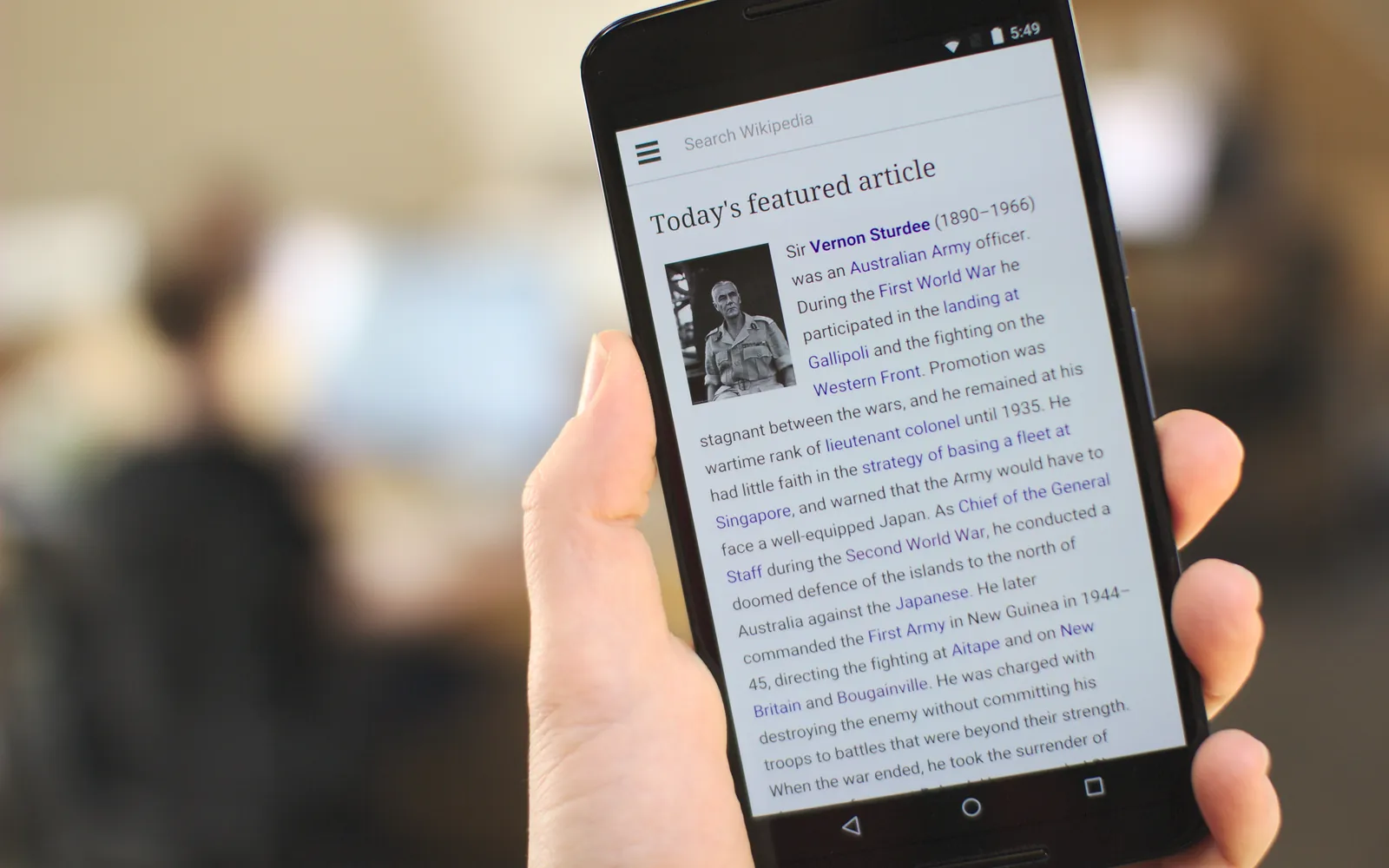
If you want to print from Android phone to printer at home, the good news is that most phones can already do it. Android has printing built in, and many current printers speak the same language through Mopria certification, so you often need no app, no driver and no account. This guide covers how it works, the exact taps, printing without a router, and what to check when the printer refuses to show up.
One caution before the steps: Android phones are made by many companies, and each one moves settings around. The menu paths below follow Google’s own help pages. If your phone shows something different, open Settings and search for “Printing” or “Print”.
How Android printing works
Android uses print services. A print service is a small piece of software that finds printers and turns your page into something the printer understands. There are three kinds you will meet:
- The Default Print Service. According to the Mopria Alliance, it is built into most Android devices and covers the basics: colour or black and white, copies, two-sided printing, orientation, page range and paper size. It works with Mopria-certified printers.
- The Mopria Print Service app. Many phones have it preinstalled; if yours does not, it is free on Google Play. It adds options such as paper type and finishing, plus workplace features like PIN printing.
- A maker’s plug-in or app. Printer makers publish their own print services and apps. Google’s Android Help shows a maker’s service as an example of one you can select under Settings. These can unlock features the generic service lacks, such as scanning, ink levels or maintenance tools.
For most home printers bought in recent years, the built-in service is enough. If the printer box or manual mentions Mopria, you are set. The same family of driverless standards is why computers rarely need maker software either; see do I need printer drivers.
Before you print: the same-network rule
Mopria printing works over a local wireless network. The phone and the printer must both be connected to it, and Mopria says it is not supported over public Wi-Fi hotspots, Bluetooth or mobile data. In practice:
- Get the printer onto your Wi-Fi first. If it has never been connected, follow our guide to connect a printer to Wi-Fi, which covers the setup wizard, WPS and the maker’s app.
- Put the phone on the same network. Not the guest network, not mobile data, and not a neighbour’s open hotspot.
- Wake the printer. A printer that has just been switched on, or is in deep sleep, may need a minute before it appears.
Turn on or add a print service
Google’s Android Help gives this path: Settings > Connected devices > Connection preferences > Printing. There you can:
- Tap a print service and switch it on or off.
- Tap Add service to add another one, such as your printer maker’s plug-in.
On phones from other makers the same screen may sit under “Connections”, “More connection settings” or “Connected devices”. The search box in Settings is the quickest way to find it. Google notes that some of these steps depend on your Android version.
How to print from common apps
Google’s help is blunt about it: the app decides how printing works, and not every app can print. Here is where to look in the apps most people use.
Chrome
- Open the page, image or file in Chrome.
- Tap More (three dots), then Share.
- Tap Print.
- At the top, select your printer. Tap the down arrow to change settings.
- Tap the print button.
Gmail
Open the email, tap More at the top right, then Print. To print a whole thread, choose Print all instead. Gmail Help notes that a message sent in confidential mode cannot be printed, which explains a missing Print option.
Photos, Files and gallery apps
In Google Photos, the Files app and most gallery apps, Print sits either in the three-dot menu or behind the Share button. Its exact position changes between app versions and phone makers, so check both. For photos, set the paper size and paper type correctly in the print preview before tapping print; our guide to photo printing at home explains which settings matter.
Apps with no Print option
If an app has no Print option at all, Google suggests taking a screenshot and printing the image. For documents, sharing the file to Chrome or a PDF viewer and printing from there often gives a cleaner result than a screenshot.
Save as PDF instead of printing
The Android print preview doubles as a PDF maker. Chrome Help describes it: in the printer list at the top, tap Save as PDF, then choose where to save the file. It is handy for keeping a receipt, booking or form, or for printing later on another printer. It costs no ink and no paper.
Printing without a router: Wi-Fi Direct
Wi-Fi Direct lets the phone connect straight to the printer’s own wireless signal, which helps in a holiday home or when the router is down. Mopria explains the steps in outline:
- Turn on Wi-Fi Direct on the printer (usually in its wireless or network menu).
- In the Mopria Print Service app, turn on Wi-Fi Direct printers and allow location access while using the app. Mopria states that it does not track your location.
- Choose the printer and print.
Some phones cannot stay on your home Wi-Fi and use Wi-Fi Direct at the same time. In that case the phone switches to the printer’s connection for the job, and you reconnect to your normal network afterwards.
Checking or cancelling a job
While a job is being sent, Android usually shows a printing notification. Pull down the notification shade and tap it to see the status or cancel. If the job has already reached the printer, cancel it from the printer’s own control panel.
If the printer does not appear
Work down this list in order. Most failures are network problems, not phone problems.
- Different networks. Many routers broadcast separate names for 2.4 GHz and 5 GHz, plus a guest network. Check the exact network name on the phone and on the printer’s network configuration page.
- Guest network or device isolation. Guest networks and features often called client isolation, AP isolation or privacy separator stop devices on the same Wi-Fi from seeing each other. Use the main network, or turn the feature off in the router settings.
- Band confusion. Some home printers support only 2.4 GHz, and a router with band steering or one shared name for both bands can make setup and discovery unreliable. Printer makers’ troubleshooting guides suggest turning off band steering or giving each band its own name.
- VPN or private DNS apps. A VPN can route traffic away from your home network. Pause it and try again.
- Print service switched off. Recheck Settings > Printing.
- Printer not Mopria-certified. Install the maker’s plug-in or app.
- Still stuck. Restart the printer and the router, check the printer for paper, ink and error messages, and update the printer’s firmware, as Mopria’s own troubleshooting suggests.
Mopria, AirPrint and mixed households
Mopria is to Android what AirPrint is to iPhone and iPad: both let a phone print to a compatible network printer without the maker’s app, and both rely on the standard Internet Printing Protocol. In a home with both kinds of phone, choose a printer that lists AirPrint and Mopria certification. Our comparison of AirPrint vs Mopria explains the differences, and if someone in the house uses a Chromebook, see how to print from a Chromebook.
Choosing a printer for an Android household
If phones are where most of your printing starts, look for Mopria certification in the specifications, plus Wi-Fi Direct if you ever print without a router. In a home with iPhones too, also check for AirPrint; our guide to print from iPhone covers that side. Automatic two-sided printing is worth having, because phone print dialogs make it easy to send long documents; see how to print double sided. The full checklist is in best printer for home use.
Use less ink and paper from your phone
Phone print previews default to all pages in colour. Before you tap print, set a page range, switch text to black and white, and turn on two-sided printing where offered. Our guide to eco-friendly printing at home has more habits that cut waste.
Frequently asked questions
How do I print from my Android phone?
Connect the phone and printer to the same Wi-Fi network. Open what you want to print, tap the three-dot menu or Share, then Print. Pick your printer at the top of the print preview, adjust copies or pages, and tap the print button.
Do I need to install an app to print from Android?
Usually not. Most Android phones include a print service that works with Mopria-certified printers. If your printer is not certified or you need extra options, install the maker's print service plug-in or the Mopria Print Service app from Google Play.
Can I print from Android without Wi-Fi?
Yes, if the printer supports Wi-Fi Direct. The phone connects straight to the printer's own signal, so no router is needed. Mopria does not support printing over Bluetooth or mobile data, and it does not directly support USB or USB-OTG connections.
Why can't my Android phone find my printer?
The usual causes are that the phone and printer are on different networks (a guest network, a separate band name or a neighbour's hotspot), the router keeps wireless devices apart, a VPN is active, or the print service is switched off in Settings.
How do I save a page as a PDF on Android?
Open the print option as if you were printing, tap the printer name at the top of the preview and choose Save as PDF, then pick where to store the file.
Sources
Editorial team
The Printer Co editorial team researches and writes independent guides to home printers, ink and printing costs, using manufacturer documentation, standards bodies and consumer-protection sources.