Ink and toner
Print With Only Black Ink: What Works When Colour Is Empty
Written by Printer Co editorial team · Updated

If you want to print with only black ink, usually because a colour cartridge has just run dry the evening before a deadline, the honest answer is: it depends on your printer. Some models have a proper black-only mode. Others will not print a single page until every cartridge has ink. And even when you pick “grayscale”, some printers still dip into the colour cartridges. Here is how to find out what your printer allows, how to set it up on Windows and macOS, and what to expect.
Can you print when a colour cartridge is empty?
Printers fall into three rough groups:
- Printers with a black-only mode. The mode exists, it is in the manual, and you can switch it on. Examples from maker documentation are below.
- Printers that let you continue for a while. Some Epson models show a message offering to print temporarily in black when a colour cartridge is expended.
- Printers that stop. Many inkjets refuse to print, even in black, until the empty cartridge is replaced. No driver setting changes this.
The quickest way to know which group you are in is to search your printer’s online manual for “black only”, “single cartridge” or “expended”. If none of those turns up, assume the printer needs all of its cartridges.
Why some printers refuse
Makers rarely give one simple reason, but their manuals point to the print head. Brother’s user guides explain that the printer asks for a new cartridge while some ink is still left, because that ink is needed to keep air from drying out and damaging the print head assembly. Canon’s manuals warn not to leave the printer with a tank removed. In printers where every colour feeds a fixed print head, running one colour completely dry, or pulling its cartridge out, risks air in the lines and dried nozzles. Stopping the printer is the cautious design choice.
There is also a quieter reason: in many printers, colour ink is used for routine cleaning even when you print only text. Canon notes that when its printers clean themselves, all colours of ink may be consumed. A printer that needs to clean every nozzle cannot do that properly with an empty cartridge. If you are wondering why ink feels so expensive in the first place, see why printer ink is so expensive.
Black-only modes in maker documentation
These are examples from specific manuals. Similar models from the same maker often work the same way, but check your own.
HP: single cartridge mode
On two-cartridge HP models, such as the DeskJet Plus 4100e series, the user guide describes a single cartridge mode. It starts automatically when only one cartridge is installed, or when you remove one of the two. To leave it, you install both the black and tri-colour cartridges again. The same guide warns that if the printer enters this mode with both cartridges in place, the protective plastic tape may still be on a cartridge.
Canon: Ink Cartridge Settings
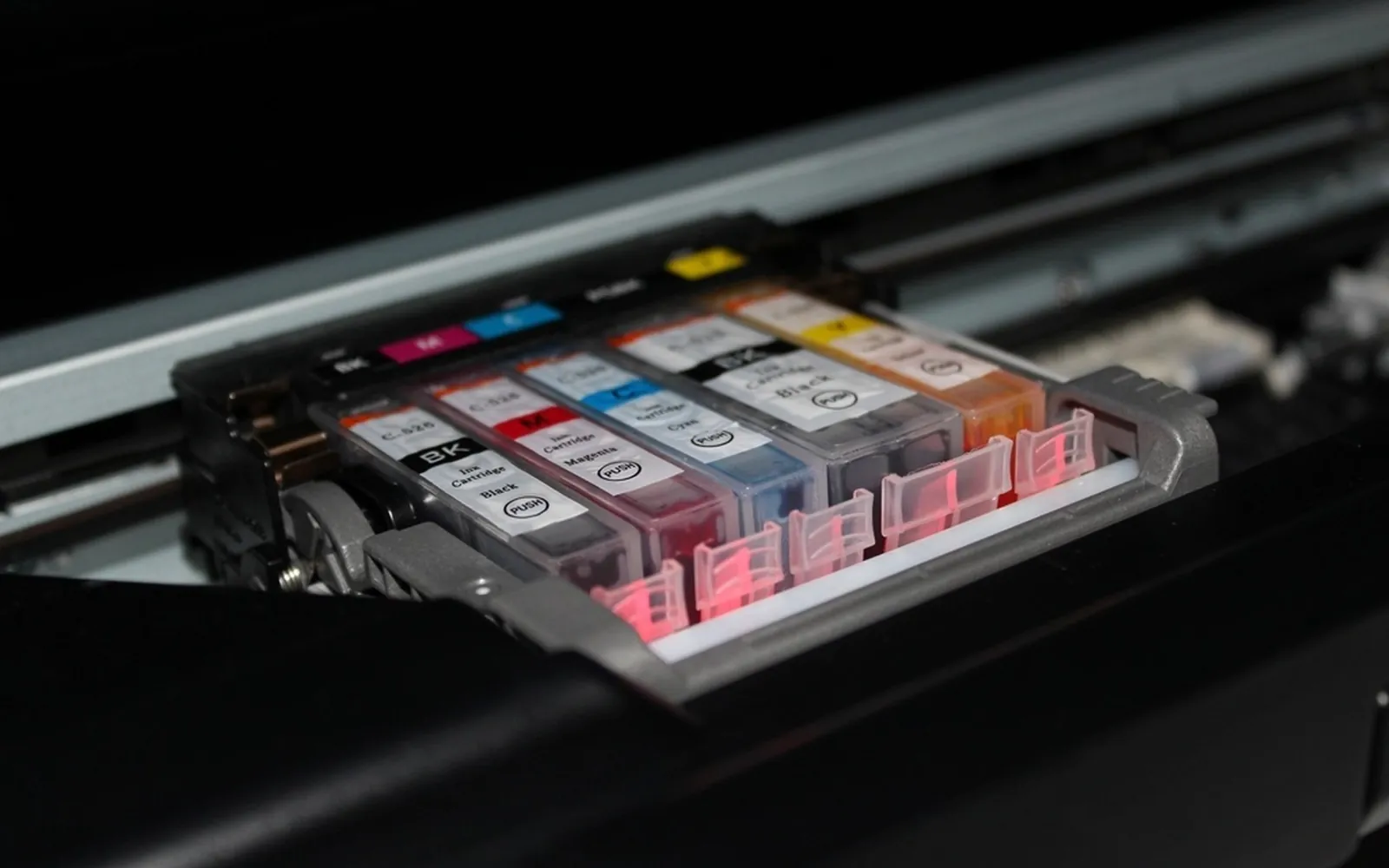
On some two-cartridge Canon models, the printer utility has an Ink Cartridge Settings option. The MG3600 series manual describes choosing Black Only, Color Only, or Both. Two limits matter: Black Only does not work if you choose a paper type other than plain paper, envelopes or Hagaki, or a borderless paper size, because the printer then uses the colour cartridge. And you must not take the unused cartridge out, because the printer cannot print with either cartridge removed.
Epson: temporary printing in black
Some Epson user guides, such as the WF-2520’s, describe printing with black ink when a colour cartridge is expended. You can do it only from a computer, not from the printer’s control panel, and on Windows the Epson Status Monitor must be enabled. You cancel the job, load plain paper or an envelope, tick Black/Grayscale in the driver, and click Print in Black when the message appears. Epson says to replace the expended cartridge as soon as possible.
How to choose black-only printing on Windows
The exact labels depend on your printer’s driver, but the route is similar everywhere:
- In your app, choose File > Print and select your printer.
- Click Printer Properties, Preferences or More settings.
- Look for a colour option and choose Black Ink Only, Black & White or Black/Grayscale.
- Click OK, then print.
To make it the default, open Settings > Bluetooth & devices > Printers & scanners, click your printer, open Printing preferences and set the colour option there. If you see only a basic dialog without these options, the full manufacturer driver may not be installed; our guide on whether you need printer drivers explains the difference.
How to choose black-only printing on macOS
Apple’s print dialog lets you choose colour or black and white when the printer supports it. Printer-specific options sit in a menu inside the dialog:
- Choose File > Print.
- Click Show Details if the dialog is compact.
- Open the menu in the middle of the dialog and choose Print Settings, Printer Features or Quality & Media, depending on the printer.
- Select the Grayscale or Black/Grayscale option, or tick Black & White if it appears.
- To reuse it, open Presets and save the current settings under a name such as “Black only”.
Why grayscale may still use colour ink
“Grayscale” means shades of grey, not “black cartridge only”. Printers can build black and grey in two ways: from black ink alone, or by mixing cyan, magenta and yellow, which is called composite black. Makers are open about this:
- HP separates Black & White or Black Ink Only, which uses only black ink, from High Quality Grayscale, which uses ink from both cartridges for a wider range of tones.
- Canon says black-and-white printing may use colour ink depending on the paper type or driver settings.
- Epson says its Black/Grayscale mode still uses a small amount of each colour to keep the print head clear, and does not recommend it for black-and-white photos.
So if the goal is saving colour ink, pick the plainest option, set the paper type to plain paper and avoid photo or high-quality modes.
Tips to use less colour ink day to day
- Make text pure black. If text is set in dark grey, navy or dark green, the driver may build it from several inks, even in some grayscale modes. Pure black text gives the printer the best chance of using the black cartridge alone.
- Watch for hidden colour. Coloured logos, hyperlinks, page borders and shaded tables all use colour ink in a normal print.
- Use draft or economy quality for internal documents.
- Do not remove a cartridge unless your manual describes single-cartridge mode. Leaving a slot empty can dry the print head; see print head clogging for what that costs.
- Do not let the colour cartridge sit empty for weeks. Replace it, and consider how long spare ink lasts before you stock up: see how long printer ink lasts.
- Run the numbers with our printer cost per page worksheet if you mostly print text.
Draft quality saves ink too
Black-only printing is one lever; print quality is another. Most print dialogs offer Draft (or Fast), Standard and High quality. Draft lays down less ink and is fine for notes, drafts and pages you will read once; keep High for photos and final copies. On some printers draft mode is only available for plain paper, so check the options after choosing the paper type. Our explainer on printer DPI describes what changes between quality levels.
When a mono laser makes more sense
If you print almost nothing but black text and keep fighting your inkjet’s colour cartridges, a monochrome laser printer removes the problem: it has only black toner, and toner does not dry out between jobs. Our laser vs inkjet guide covers the trade-offs, including photos and colour documents you would lose.
Frequently asked questions
Can I print in black when the colour cartridge is empty?
On some printers, yes. Two-cartridge HP models can use single-cartridge mode, some Canon models let you choose Black Only in the printer utility, and some Epson models offer a temporary Print in Black option from the computer. Many other printers stop printing until every cartridge is replaced. Your manual is the only reliable answer for your model.
Why does my printer refuse to print when only one colour is empty?
Many inkjets are designed to stop when a cartridge reaches its limit, and makers keep a little ink in each cartridge so air does not dry out the print head. Brother's guides explain that this leftover ink protects the print head assembly.
Does grayscale printing use colour ink?
It can. Canon says black-and-white printing may use colour ink depending on paper type and driver settings. Epson says its Black/Grayscale mode still uses a small amount of each ink to keep the print head clear. HP's High Quality Grayscale option deliberately mixes colour and black.
How do I set my printer to print black and white by default?
On Windows, open Settings, go to the printer under Bluetooth & devices, Printers & scanners, open Printing preferences and choose the black or grayscale option. On a Mac, choose the grayscale option in the Print dialog and save it as a preset.
Should I remove the empty colour cartridge?
Only if your manual says the printer supports single-cartridge mode. Canon and Brother warn against leaving cartridges out of printers that need all of them installed, because the print head can dry out.
Sources
- HP DeskJet Plus 4100e series user guide (single cartridge mode, colour settings)
- Epson support: How do I set up my product to print only black or grayscale from Windows or my Mac?
- Epson WF-2520 user's guide: Printing with black ink and expended colour cartridges
- Canon MG3600 series online manual: Setting the Ink Cartridge to be Used
- Canon TR7500 series online manual: Replacing Ink Tanks
- Canon TR7500 series online manual: Ink Tips
- Brother DCP-J772DW online user's guide: Replace the ink cartridges
- Apple Support: Print documents from your Mac
Editorial team
The Printer Co editorial team researches and writes independent guides to home printers, ink and printing costs, using manufacturer documentation, standards bodies and consumer-protection sources.