Costs and eco printing
How to Print a Web Page Without Ads and Save Ink and Paper
Written by Printer Co editorial team · Updated
If you have ever printed a recipe and got six pages of ads, comment threads and a blank sheet with a single footer, you know why people search for how to print a web page without ads. Web pages are designed for screens, not paper, and printing them as they are wastes ink and paper. The fix is usually built into your browser already. This guide covers the reader views in each major browser, the print preview settings that matter, and a few habits that save the most.
Start with the site’s own print button
Before anything else, look on the page for a Print or Printer-friendly link. Recipe sites, airline and event tickets, government forms and many news articles have one. It usually produces a layout made for paper, without menus or ads, and often fits on fewer sheets than anything you can do in the browser.
Use reader view
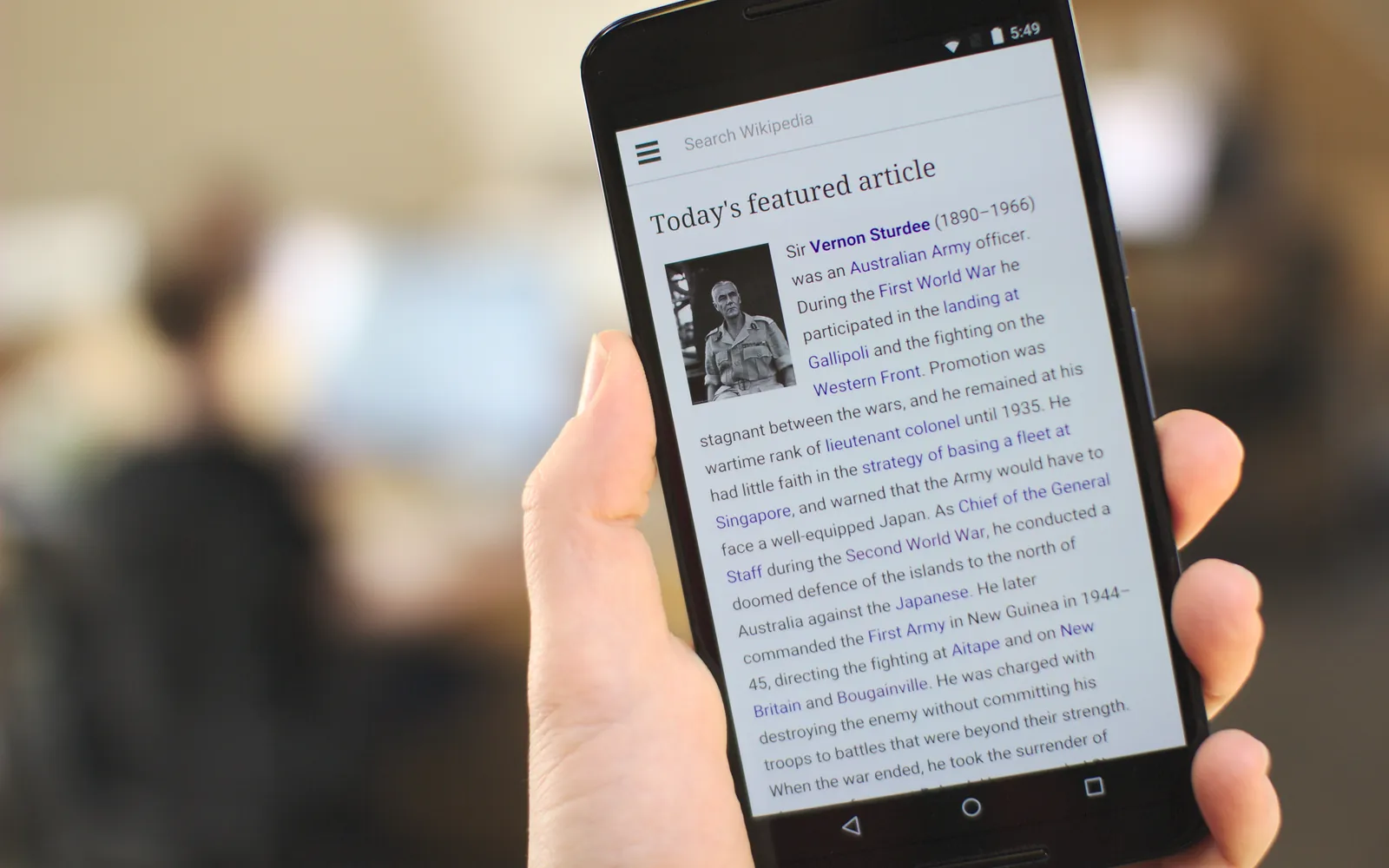
Most browsers have a reading mode that strips a page down to its article: the text, headings and main images, without most ads, menus and sidebars. Printing from that view gives a cleaner result.
Microsoft Edge. Microsoft’s own help page describes clutter-free printing as removing surrounding material such as ads and site navigation, and recommends Immersive Reader as the way to get it: open the page, select the Immersive Reader icon in the address bar, or press F9 on Windows, then press Ctrl+P (Command+P on a Mac) to print. Microsoft notes that Immersive Reader may not be available for every website. It also says it is working on a clutter-free option directly in the print dialog, so check your print settings for one too.
Safari on Mac. Apple’s Safari guide describes Reader, which shows a web page article on one page, formatted for easy reading and without navigation or other distractions. Click in the Smart Search field and choose Show Reader; the option only appears when the page has an article that Reader can show. Then print from the File menu or with Command+P.
Firefox. Firefox has Reader View, opened from the icon in the address bar when a page supports it. Print from that view in the usual way.
Chrome. Google’s help page for printing covers the basics: press Ctrl+P (Command+P on a Mac), choose the destination and settings in the window that appears, and click Print. For clutter, use the site’s print button or the settings below.
Trim the print preview
Whichever browser you use, the print preview window is where you save most of the ink and paper. Edge’s settings are a good example of what to look for, and other browsers have similar ones:
- Pages. Check the page count. Print only the range that holds what you need, for example pages 1 to 2, and skip pages of comments and links.
- Background graphics. Microsoft lists this under More settings. Leaving it off avoids printing coloured page backgrounds and some images.
- Headers and footers. Edge adds the date and page numbers when this is on; turn it off if you do not want them.
- Colour. Choose black and white for text pages; see printing with only black ink for what that saves.
- Pages per sheet. Microsoft notes that printing several pages on one sheet saves paper. Two pages per sheet is readable for most articles.
- Two-sided. If your printer supports it, print on both sides; see how to print double-sided.
- Scale. If a line or two spills onto an extra sheet, Edge’s Scale setting can fit the content to the printable area or let you shrink it slightly. Our page on fit to page vs actual size explains these options.
Save as PDF first
Choosing Save as PDF (or Microsoft Print to PDF) as the destination turns the page into a file without using any paper. That helps in three ways:
- you can check the result, and the page count, before printing,
- you can keep receipts, confirmations and articles without printing them at all,
- you can print just the pages you need later, from any device.
Chrome’s help also describes saving to Google Drive from print preview if you use Drive.
When the page will not cooperate
Some pages fight back: reader view is not offered, or the article is split across several screens.
- Copy the text. Select the part you need, copy it into a document, and print that. You control the font size and margins.
- Print a selection. Some browsers can print only selected text; look for an option in print preview after selecting.
- Zoom out the layout. Shrinking the scale slightly can stop a single line overflowing onto a blank page.
- Skip the images. If you only need the text of a recipe, reader view or copying usually drops the large photos that use the most colour ink.
Habits that save the most
Most of the savings come from not printing things you will only read once. Save confirmations as PDFs, print recipes from reader view at two pages per sheet, and use draft quality for anything you will throw away; our guide to eco-friendly printing at home has more ideas. If you print from your phone, the same reader modes exist in mobile browsers, and printing through AirPrint or Mopria uses the same preview steps.
Frequently asked questions
How do I print a web page without the ads?
Open the page in your browser's reader view, which shows the article text and main images without most ads and menus, and print from there. In Microsoft Edge, Microsoft suggests Immersive Reader (select its icon in the address bar or press F9 on Windows) and then Ctrl+P. Safari has Reader and Firefox has Reader View.
Why does a web page print so many pages?
Comments, related links, footers and ads all print too, and some sites have print layouts that waste space. Check print preview, print only the page range that holds the article, or use reader view to strip the extras.
How do I stop the date and web address printing at the top and bottom?
Turn off headers and footers in the print dialog. In Edge, Microsoft puts this under More settings, Headers and footers. Chrome and Firefox have a similar option.
Does printing background graphics use more ink?
Yes, coloured backgrounds and large images can use a lot of ink. Edge, for example, lets you include or leave out background graphics under More settings; leave it off for everyday printing.
Can I print just part of a web page?
Use the page range in print preview to skip pages you do not need. For a short passage, copying the text into a document and printing that is often quickest.
Sources
Editorial team
The Printer Co editorial team researches and writes independent guides to home printers, ink and printing costs, using manufacturer documentation, standards bodies and consumer-protection sources.