Ink and toner
Print Head Clogging: Why Ink Dries and How to Prevent It
Written by Printer Co editorial team · Updated
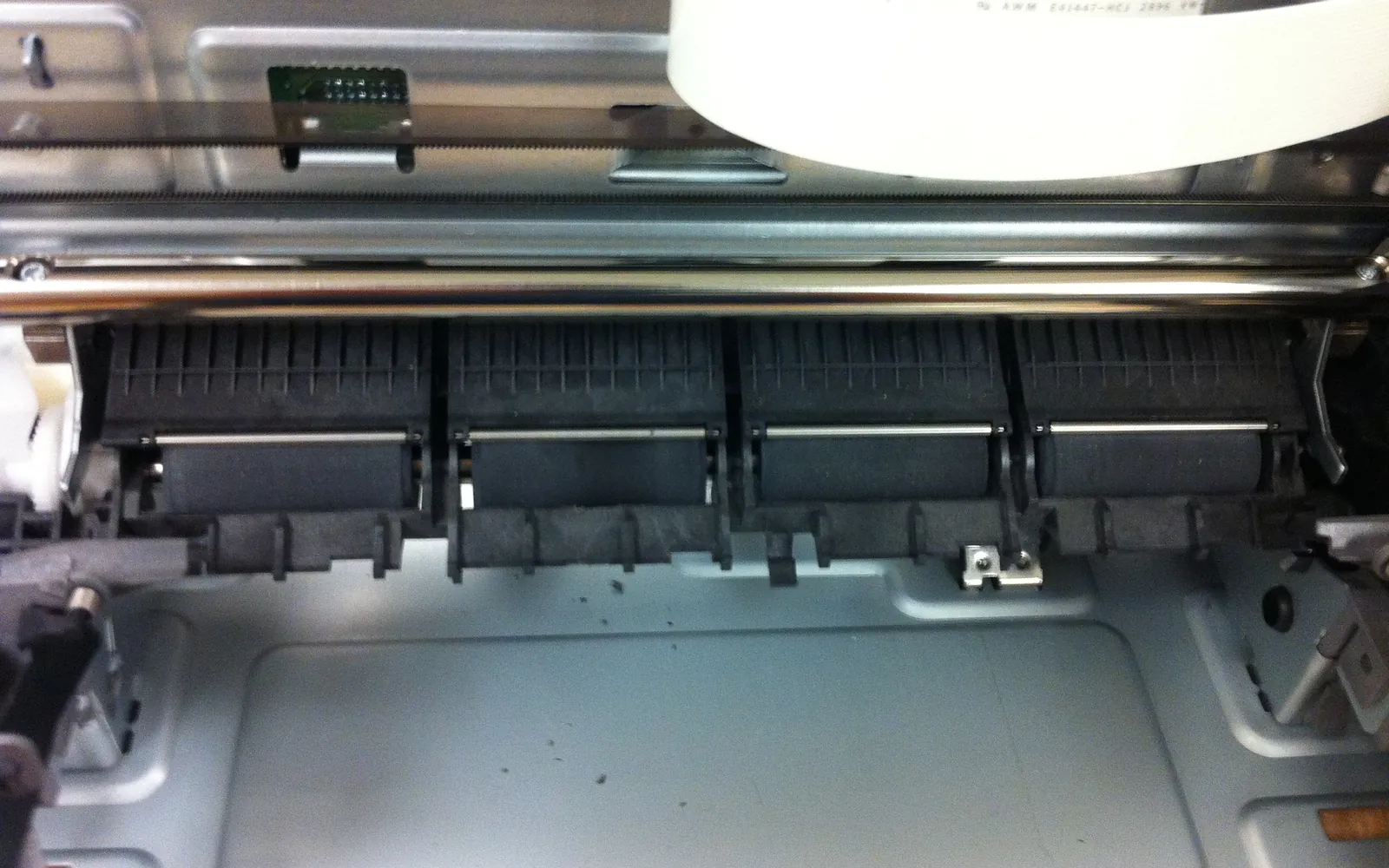
Print head clogging is the most common complaint about inkjet printers, and the reason so many people say their printer “only works when it feels like it”. It is not bad luck. It is what happens when liquid ink meets very small holes and long gaps between print jobs. Understanding it helps you prevent it, and it saves ink.
How a print head works
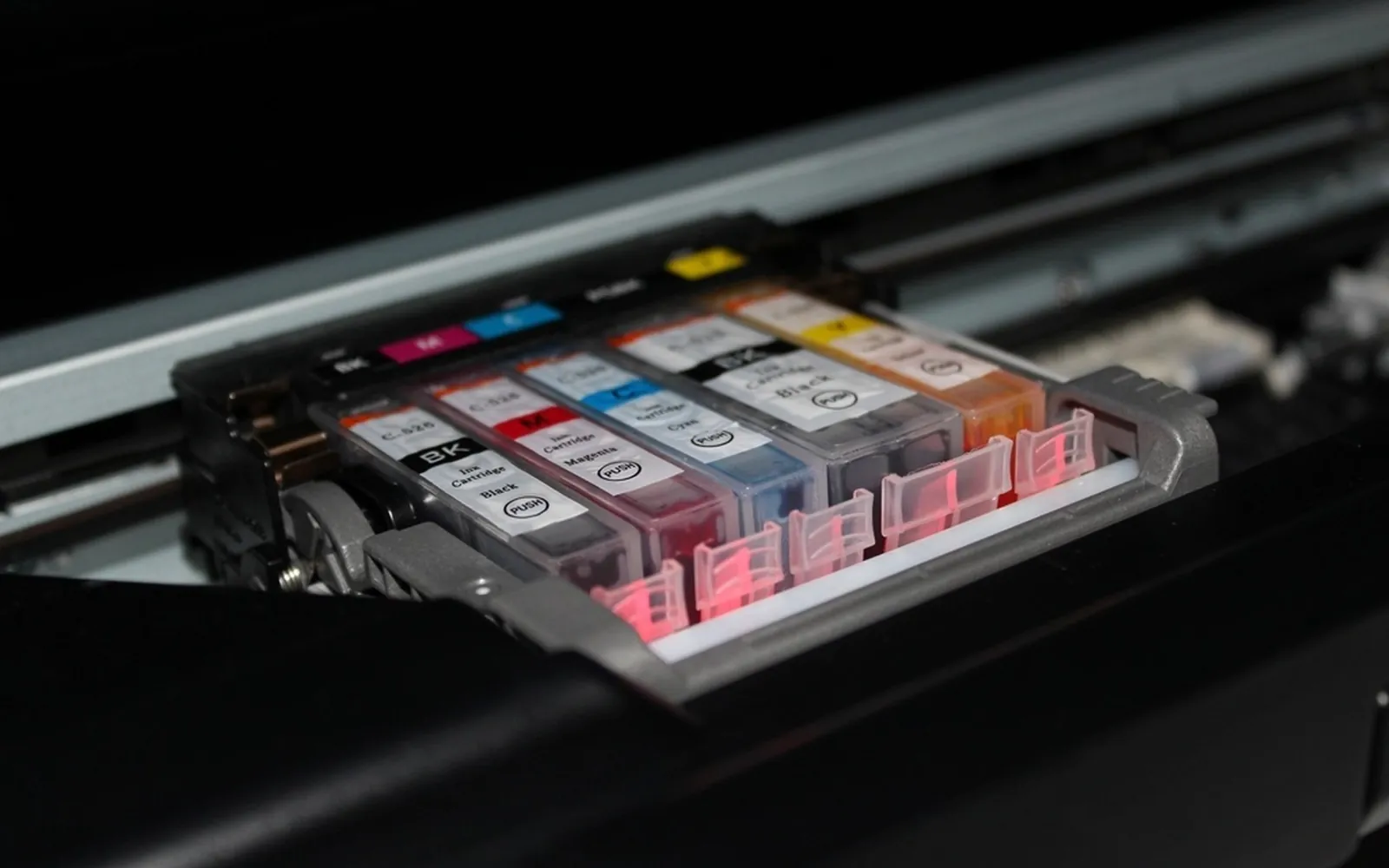
An inkjet print head has hundreds or thousands of microscopic nozzles. Each fires tiny droplets of ink, either by heating the ink so a bubble pushes a droplet out (thermal inkjet) or by flexing a small piezoelectric element (piezo inkjet). The nozzles are far finer than a human hair.
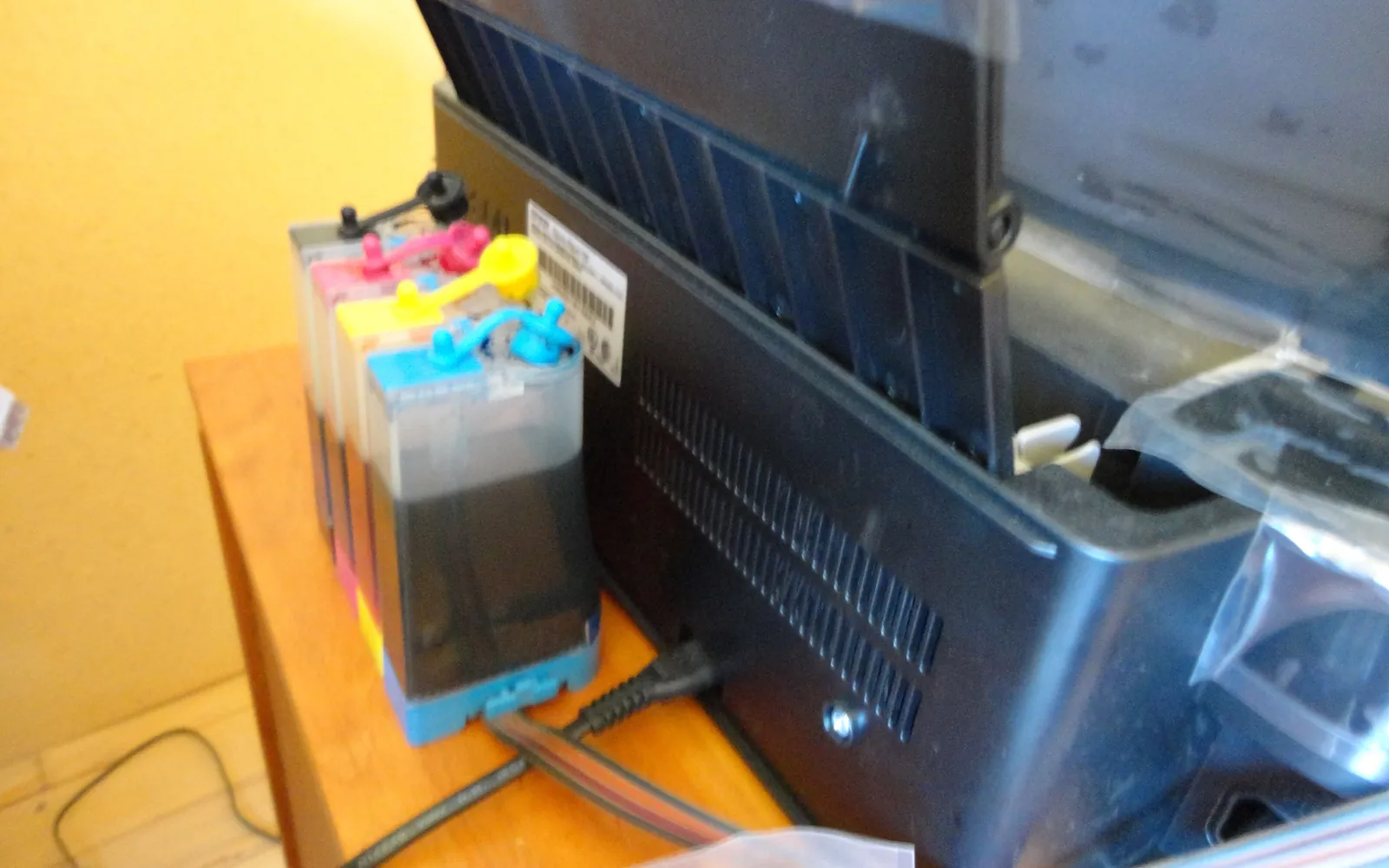
Depending on the printer, the head is either part of each cartridge or a permanent part of the printer. On printers with cartridges that include the head, every new cartridge brings a new head. On printers with a permanent head, including most ink tank printers, the head is meant to last the life of the printer, so looking after it matters more.
Why nozzles clog
- Idle time. Ink at the nozzle openings slowly thickens when not used. Days are usually fine; weeks of no printing raise the risk.
- Heat and dry air. A printer in a hot room, a sunny window or next to a radiator dries out faster.
- Cutting power at the wall. Many inkjets park and cap the head when switched off with their own power button. Pulling the plug while the head is out can leave nozzles exposed.
- Ink that does not suit the printer. Ink with the wrong chemistry or particles can block nozzles; see third-party printer ink.
- Running a cartridge completely dry on some models, which can let air into the system.
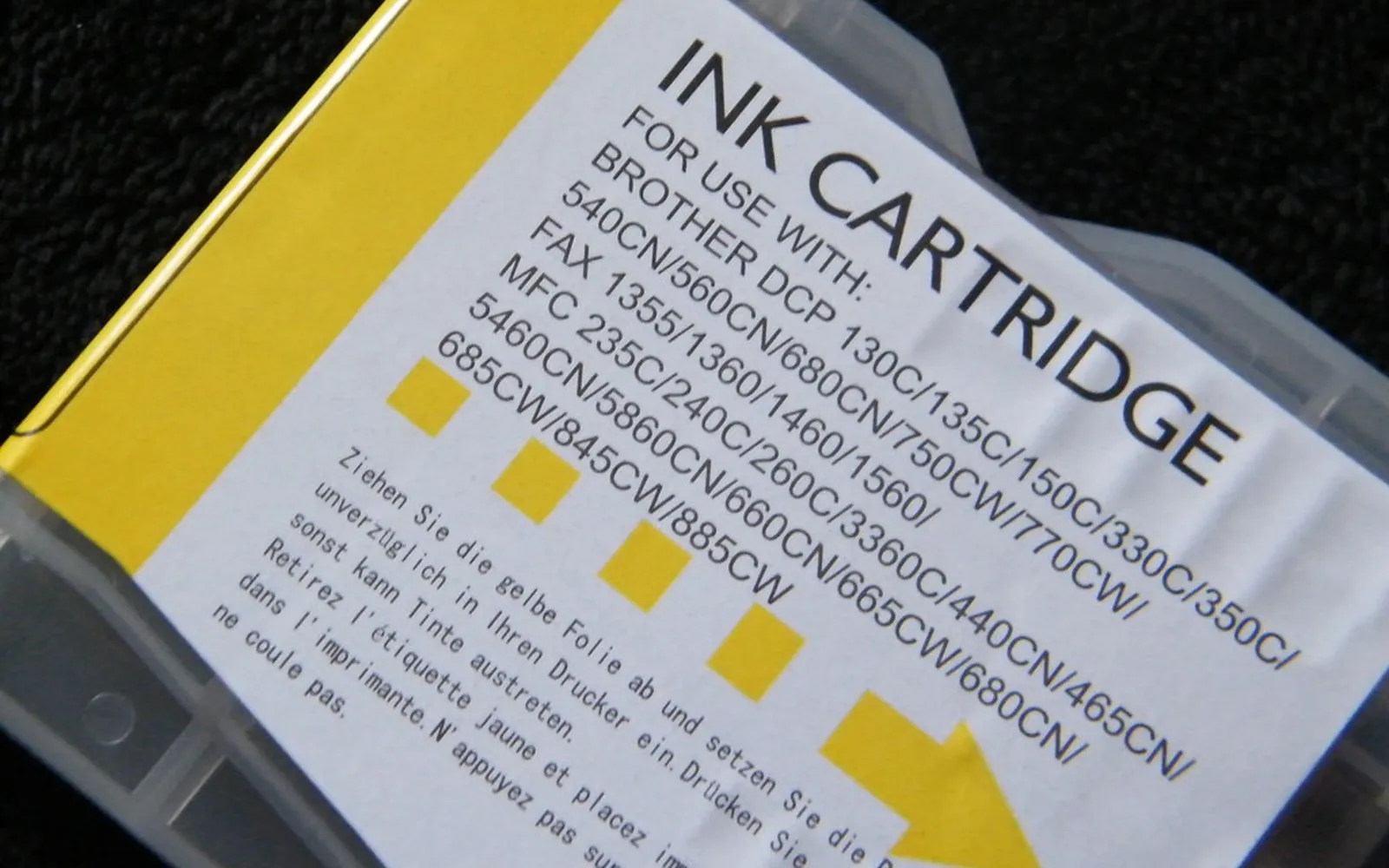
- Old ink. Cartridges and bottles carry a use-by or install-by date, and ink that has sat in an idle printer for months behaves differently from fresh ink. How long does printer ink last explains those dates and how to store spares.
Signs of a clogged print head
- Fine white lines or bands across text and images.
- One colour missing or wrong, for example greens printing blue.
- Faded black text even with a new cartridge.
- A nozzle check pattern with gaps.
Which colour fails tells you something. Many printers use a pigment black for text and dye inks for colour, and the two behave differently on paper and in the nozzles. If only black text is faint or broken, the pigment black channel is the one to check first. Our guide to pigment vs dye ink explains how to find out which inks your printer uses.
How to clear a clog, step by step
- Print a nozzle check from the printer’s maintenance menu or software. This shows which colours have gaps.
- Run one head cleaning cycle for the affected colours if your printer allows that.
- Print another nozzle check. If it has improved but is not perfect, run one more cleaning.
- Let the printer rest. If two cleanings do not fix it, leave the printer switched on for a few hours or overnight, then check again. Resting often lets ink soften without using more of it.
- Print a colourful page after cleaning to draw fresh ink through the nozzles.
- Avoid repeated cleaning cycles back to back. Each one uses ink, and on many printers the waste ink is collected in an internal pad or maintenance box with limited capacity.
Some makers offer a deeper “power cleaning” option. It uses a lot of ink, so keep it as a last resort and follow the manual.
What not to do
Online advice for clogged heads ranges from sensible to risky. Unless the maker’s manual tells you to, avoid:
- Poking or wiping the nozzle plate with tissues, cotton buds or pins. The nozzles are microscopic and easy to damage, and fibres can make things worse.
- Soaking or flushing a permanent print head with household cleaners or alcohol. Ink chemistry differs between makers, and the wrong liquid can damage seals.
- Running cleaning cycle after cleaning cycle. Beyond two or three, you mostly fill the waste ink pad and empty your cartridges.
- Removing a permanent head on a printer under warranty. Contact the maker first.
Cartridges with a built-in head are a different case: the head is replaced every time you change the cartridge, so if a cartridge with a built-in head still prints badly after cleaning, trying a fresh cartridge is a reasonable test.
How to prevent clogging
- Print a small page that uses every colour about once a week. A simple colour test page or a page with coloured text is enough.
- Leave the printer plugged in and switch it off with its own button, so it can cap the head and, on some models, run light automatic maintenance.
- Keep it out of direct sun and away from heaters.
- Use ink made for your printer. Good third-party ink can work, but quality varies.
- Replace cartridges before they run completely dry if your manual recommends it.
- If you will be away for months, follow the manual’s guidance for long storage.
The cost side
Clogs cost money twice: the ink used to clean and the ink wasted on spoiled pages. If you print very rarely, a larger share of each cartridge goes to maintenance, which raises your real cost per page. For homes that print rarely and mostly in black, a mono laser avoids the issue entirely, because toner is a dry powder. Our laser vs inkjet comparison explains more.
When it is more than a clog
Some printers show a specific print head error code rather than poor print quality. Such codes can point to a failed head, a poor electrical connection between cartridge and carriage, or an internal fault. Because codes differ by maker and model, look up your exact code in the maker’s documentation. Gentle steps that are generally safe include switching the printer off and on, reseating the cartridges and making sure no protective tape is left on them.
If the printer is under warranty, contact the maker before opening anything further. In the United States, a warranty generally cannot require you to use only the maker’s ink, although damage caused by a third-party supply may not be covered.
In short
Use an inkjet little and often, switch it off properly, and clean only when a nozzle check shows a problem. That keeps the head healthy and more of your ink on the page. If your printing pattern makes clogs inevitable, it may be time to rethink which printer suits your home.
Frequently asked questions
What causes print head clogging?
Ink at the nozzle openings thickens or dries when the printer is not used for a while. Dust, heat, low humidity, cutting power before the head is capped and some third-party inks can make it worse.
How often should I print to prevent clogging?
There is no single official figure, but printing a short page that uses every colour about once a week is a common, sensible habit. Some printers also run automatic maintenance if left plugged in and switched on.
How do I unclog my printer nozzles?
Run a nozzle check from the printer's control panel or software. If lines are missing, run one head cleaning, then check again. If it improves, repeat once. If not, let the printer rest for a few hours and try again rather than running many cleanings in a row.
Do cleaning cycles waste ink?
They use ink, and on some printers the waste goes into an internal pad or maintenance box that eventually needs replacing. That is why repeated cleaning is a poor substitute for regular printing.
What does a print head error mean?
It usually means the printer has detected a fault with the print head or its connection, which may be more than a clog. Error codes differ by maker and model, so look up the exact code in the maker's documentation.
Can expired ink cause clogging?
It can contribute. Ink is designed to be used within the period printed on the cartridge or bottle. Old ink, or ink left for months in an idle printer, is more likely to cause streaks and need cleaning cycles.
Sources
Editorial team
The Printer Co editorial team researches and writes independent guides to home printers, ink and printing costs, using manufacturer documentation, standards bodies and consumer-protection sources.