Ink and toner
How to Check Ink Levels on a Home Printer (and Trust Them)
Written by Printer Co editorial team · Updated
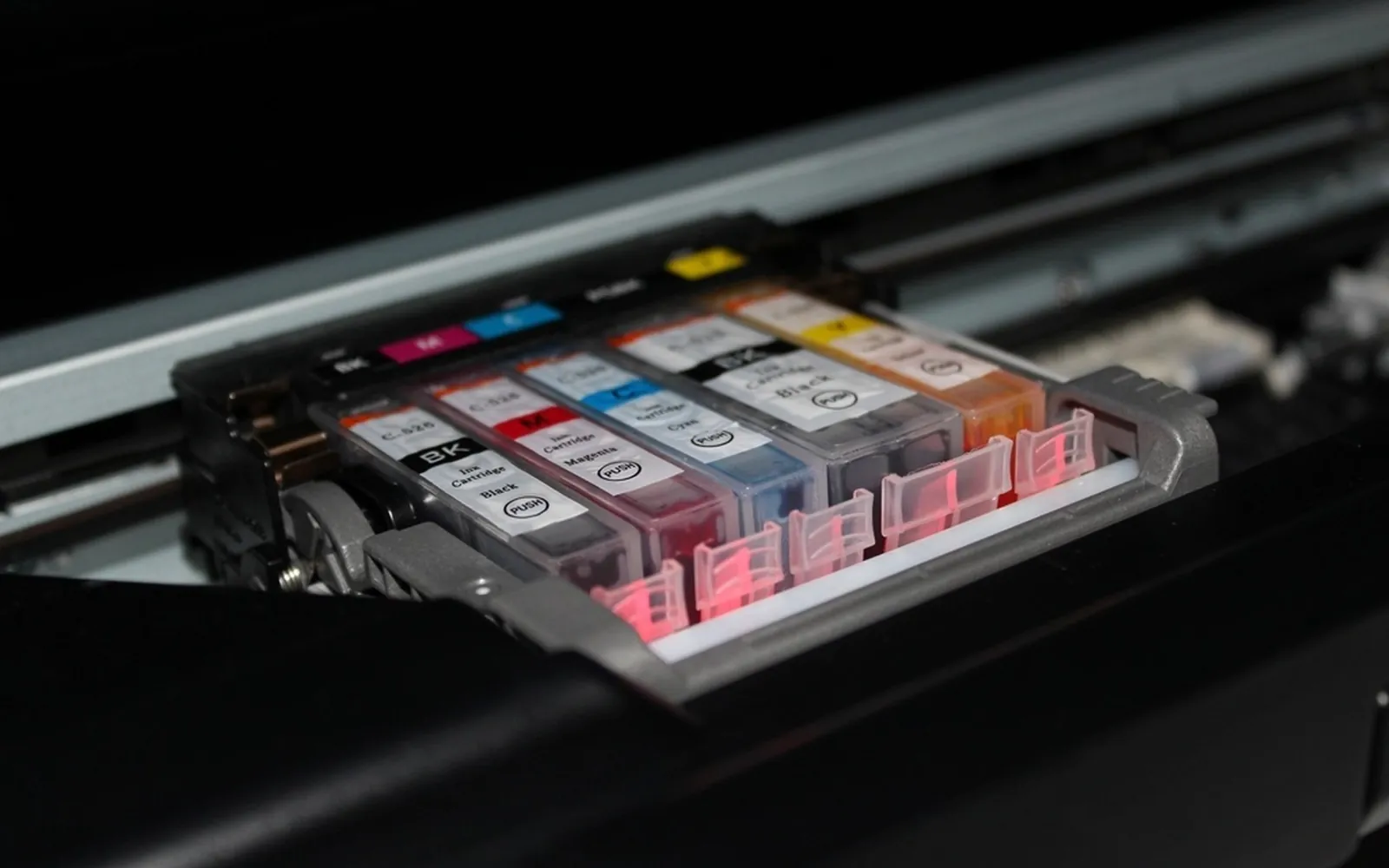
Knowing how to check ink levels saves two kinds of frustration: running out in the middle of a school project, and throwing away a cartridge that still had plenty of ink in it. Every home printer reports its ink somewhere, but the place varies, and the number it shows is never as exact as it looks. This guide covers where to find the levels on any printer, how to read them, and how much to trust them.
Where printers show ink levels
There are usually four places to look. You only need one that works.
- The printer itself. Printers with a screen have a menu called something like Ink, Supplies or Ink Level. Printers without a screen use lights.
- Software on your computer. Most makers install a status monitor or printer utility with the driver.
- The maker’s phone app. If you set the printer up with an app, it usually shows ink on its home screen.
- The printer’s built-in web page. Type the printer’s IP address into a browser on the same network; many printers show supplies on the first page. Our guide to connecting a printer to Wi-Fi explains how to find the IP address.
On the printer: screens and lights
Printers with a screen. Brother’s guide for the MFC-J4335DW is typical: press the Ink key, choose Ink Volume and press OK. The display shows the level in each cartridge, the ink left in an internal reservoir, and a page gauge, an estimate of how many pages are left. From the same Ink menu you can choose Ink Cartridge Model to see or print the exact model numbers of the cartridges, which is the most reliable way to know what to buy.
Printers with only lights. Small printers often have one lamp for black and one for colour. Canon’s manual for the TS3300 series explains its lamps:
- Ink lamp lit: the ink is running low. Prepare a new cartridge; print quality may suffer if you keep printing.
- Ink lamp flashing together with the Alarm lamp: an error has occurred, shown with an error code on the display.
Your printer’s lights may differ, so check the manual’s page on ink status before guessing.
On a Windows computer
Windows itself does not show ink levels for most printers; the maker’s software does. Typical places:
- A printer icon in the taskbar notification area. Epson’s guide for one of its printers says to double-click its icon there to open a status screen showing the ink level.
- The maker’s utility or app in the Start menu.
- The printer preferences window, opened from the print dialog or from Settings, Printers and scanners. Look for a Maintenance or Supplies tab.
If none of these exists, the full driver package from the maker’s website usually adds it. Our guide to whether you need printer drivers explains the difference between the basic driver Windows installs and the maker’s full software.
On a Mac
On a Mac, the maker’s utility usually sits behind the printer’s settings. Epson describes the route for its printers: open System Settings (System Preferences on older macOS), choose Printers and Scanners, select the printer, choose Options and Supplies, then Utility, open the printer utility and select EPSON Status Monitor. A window shows each ink level, with an Update button to refresh it. Canon and other makers have similar utilities; Canon calls its own the Canon IJ Printer Utility.
On a phone
If the printer is set up in the maker’s app, open the app on a phone connected to the same Wi-Fi as the printer. Ink levels are usually on the main screen, along with a shortcut to order supplies. You do not have to use that shortcut; the app is simply a convenient place to read the cartridge number. Printing from a phone through AirPrint or Mopria does not usually show ink detail; see AirPrint vs Mopria.
Ink tank printers: just look
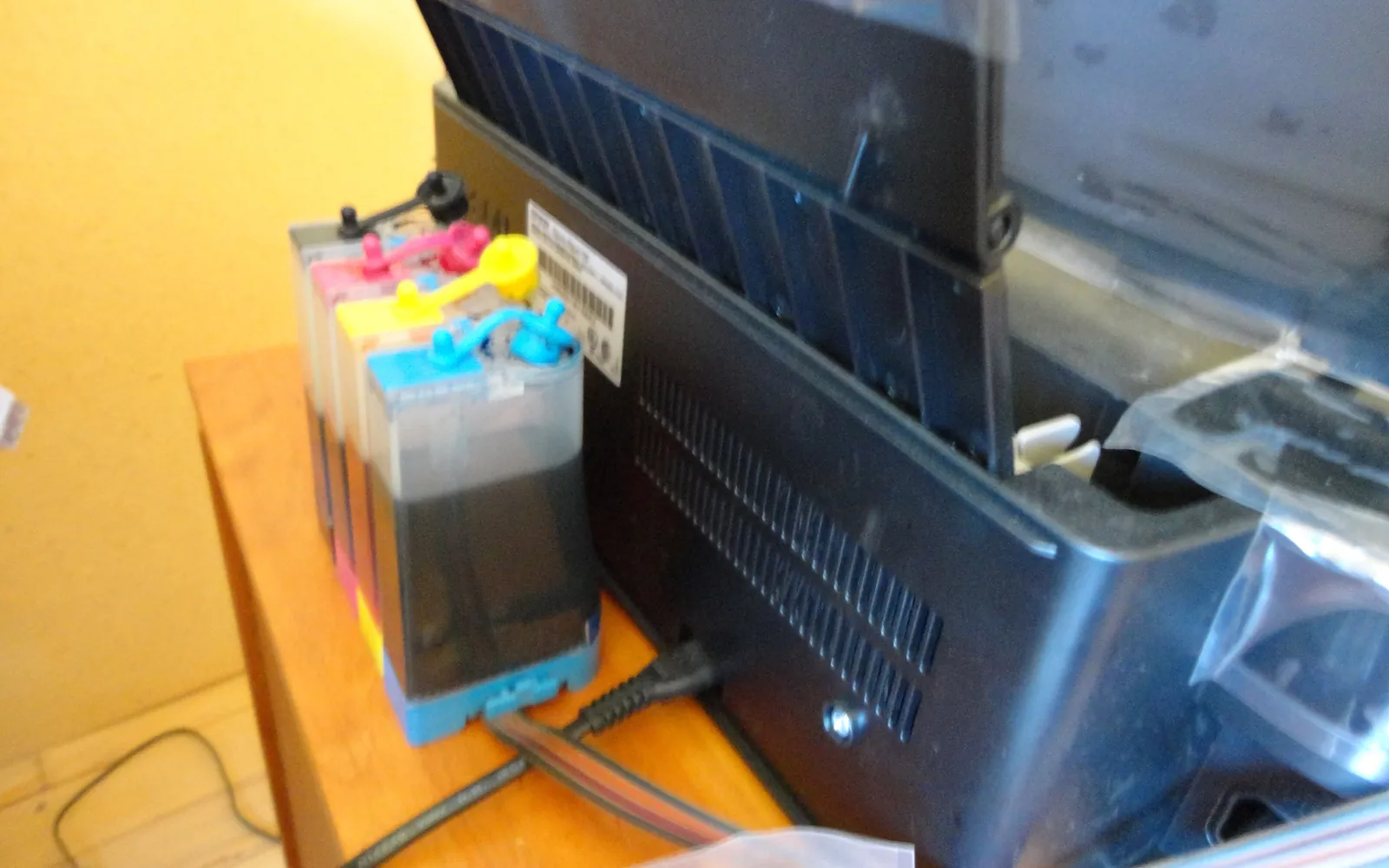
Ink tank printers have windows on the tanks, and that is the most reliable gauge you have. Epson’s guide for one of its tank models says the level shown by its software is an estimate and may differ from the ink actually left, and tells you to confirm by looking at the tank. It also warns that continuing to print with the ink below the lower line on the tank could damage the product. Refill before you reach that line. Our comparison of ink tank vs cartridge printers covers the other differences.
How much to trust the numbers
Every ink gauge is an estimate, and the makers say so:
- Brother: the page gauge is an estimate for informational purposes only and does not display the actual remaining page yield.
- Epson: the ink level displayed is an estimate and may differ from the ink actually remaining.
- Canon: the printer treats a new cartridge as full and then tracks the level from there; if you install a used cartridge, the level shown may not be correct and should be used only as a guide.
Two practical consequences follow. First, the page count left depends on what you print: a page full of colour photos uses far more ink than a page of text, so “200 pages left” is a rough figure. Second, a refilled or swapped cartridge often reports the wrong level, because the printer cannot see that ink was added. If you refill, expect to judge by print quality instead; see how to refill ink cartridges.
What to do at each warning
| What you see | What it means | What to do |
|---|---|---|
| Low ink warning or lit ink lamp | Running low | Buy a replacement; keep printing if quality is fine |
| Faded or streaky output with ink showing | Possibly clogged nozzles, not empty | Run a nozzle check before buying ink |
| “Replace cartridge” or error code | The printer has stopped using that cartridge | Replace it |
| Tank ink near the lower line | Nearly empty | Refill now |
Faded prints are not always an ink problem. If the gauge shows plenty of ink but lines are missing, read print head clogging before you spend money.
Buying the right replacement
When the gauge says low, write down the cartridge number shown in the ink menu or app, or on the cartridge label, before you shop. Then decide whether a standard or high-yield cartridge suits how much you print; our page on are XL ink cartridges worth it runs the comparison. And if you print rarely, buy the replacement when the warning appears rather than months ahead, because ink has a shelf life; see how long printer ink lasts.
Frequently asked questions
How do I check my printer's ink levels?
On printers with a screen, look for an Ink, Supplies or Ink Level menu. Without a screen, use the maker's software on your computer (a status monitor or printer utility), the maker's phone app, or the printer's built-in web page, opened by typing its IP address into a browser.
Are printer ink level gauges accurate?
They are estimates. Brother says its page gauge is for informational purposes only and does not show the actual remaining yield, and Epson says the displayed level may differ from the ink actually left. Treat them as a guide to when to buy, not an exact count.
Can I keep printing after a low ink warning?
Usually yes, for a while. Canon's manual says a lit ink lamp means the ink is running low and to prepare a new cartridge, adding that print quality may suffer if you continue. When the printer reports an error or asks you to replace the cartridge, do so.
Why does my printer show the wrong ink level after a refill?
Many printers estimate levels by counting what they use from the moment a new cartridge goes in. Canon notes that if you install a used cartridge, the displayed level may not be correct. A refilled or moved cartridge can therefore show empty or full when it is not.
How do I check ink in an ink tank printer?
Look at the tanks through the window on the front or side. Epson's guide for one of its tank printers says the on-screen level is an estimate and to confirm by checking the tank visually, and warns that printing with ink below the lower line could damage the printer.
Sources
Editorial team
The Printer Co editorial team researches and writes independent guides to home printers, ink and printing costs, using manufacturer documentation, standards bodies and consumer-protection sources.