Home printers
How to Move a Printer Safely When You Relocate or Ship It
Written by Printer Co editorial team · Updated
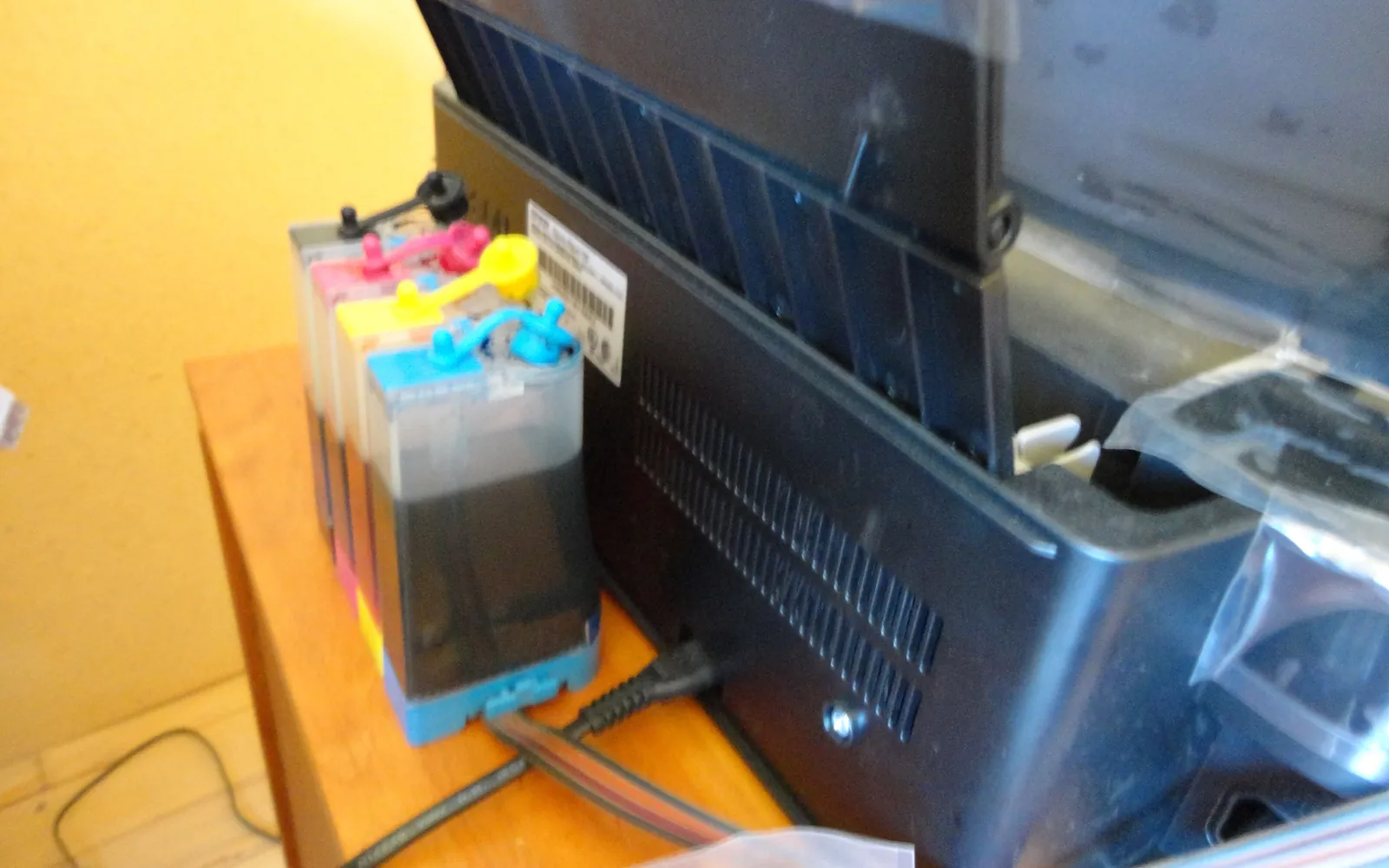
Printers survive moves well if you prepare them for ten minutes, and badly if you carry them out at the last minute with the lid flapping. Inkjets are the fragile ones, because they travel with liquid ink inside; ink tank models carry the most. Knowing how to move a printer properly avoids leaks, a dried print head and a long first-day fix at the new place. This guide follows the transport instructions in Canon’s manuals for a cartridge model and an ink tank model, and the same principles apply to other brands. Always check your own manual’s transport page too.
Before you start: check the manual
Most printer manuals have a page called something like Transporting Your Printer or Packing and Shipping. It lists steps specific to your model, such as a transport mode or a lock. Search the manual for “transport” or “ship”. If you are sending the printer for repair or giving it away rather than moving house, also read how to dispose of an old printer or how to secure a home printer for resetting stored data first; Canon’s manual says to reset the settings before repair, lending or disposal.
Step 1: Turn it off the right way
Do not just pull the plug. Canon’s manual says to press the ON button with the cartridges installed, which lets the printer automatically cap the print head and stop it drying. Then:
- Wait until the power light is completely off. Canon warns not to unplug while the light is lit or flashing, as that may damage the printer.
- Unplug the printer cable from the computer and the printer.
- Unplug the power cord.
Step 2: Leave the ink in, and keep it level
For most inkjets, leave the cartridges installed. A removed cartridge can dry out, and the printer needs them in place to cap the print head.
The most important rule is to keep the printer level and right way up. Canon’s TS3300 manual is explicit: after packing, do not tilt the box, turn it on its side or turn it upside down, because ink may leak during transport and damage the printer.
Step 3: Extra steps for ink tank printers
Ink tank printers hold a lot more ink in their tanks and tubes, and Canon’s GX7000 manual adds several precautions:
- You cannot take the ink out of the tanks, so the printer always travels with ink inside.
- Check that each tank cap is completely inserted, and the tank cover fully closed.
- Keep the print head attached; removing it may cause leaks.
- Use Transport mode: from the Setup menu, choose Maintenance, then Transport mode, and confirm. The printer prepares itself and turns off automatically.
- Put the printer in a plastic bag and seal the opening with tape so any ink stays inside.
- Do not tilt it, and carry it as the manual shows (the GX7000 manual warns that holding the paper cassette may make it come off).
If ink does leak inside, Canon suggests wiping it with a soft cloth dampened with water. Our page on ink tank vs cartridge printers explains how these systems work.
Step 4: Close, tape and pack
Canon’s steps for packing, which suit most home printers:
- Take out loose paper and close the trays and paper supports.
- Use adhesive tape to secure all covers so they cannot open on the way. Use tape that peels off cleanly.
- Put the printer in a plastic bag.
- Pack it in a sturdy box, bottom facing down, with enough protective material around it. The original box and foam are ideal if you kept them.
- If someone else is moving it, mark the box THIS SIDE UP and FRAGILE or HANDLE WITH CARE.
Pack the power cord, USB cable and any spare cartridges separately in a labelled bag, and keep spare cartridges sealed and upright.
Laser printers
Laser printers have no liquid ink, so leaks are not a concern, but toner is a fine powder and can spill inside if a cartridge is shaken or the printer is tipped. Keep it level, close all covers, and follow your manual’s transport section, which may have model-specific advice about the toner cartridge or drum unit. Our guide to toner vs drum unit explains the parts.
Moving it in a car
- Put the box on the floor or flat on a seat, wedged so it cannot slide or tip.
- Do not put it on its side to make it fit.
- Avoid leaving it in a very hot or freezing car for hours; ink and electronics prefer room temperature.
Step 5: Setting up at the new place
- Unpack and remove all tape, including any inside the covers.
- Let it reach room temperature if it has been in the cold, before switching on.
- Plug in and turn on. On an ink tank printer that used transport mode, follow any on-screen steps to return to normal operation.
- Reconnect to Wi-Fi. The new home probably has a different network name and password. Our guide to connecting a printer to Wi-Fi covers this, including how to make the address stable.
- Run a nozzle check. If lines are missing, run a cleaning cycle. If lines look jagged or doubled, run print head alignment; a move is one of the times alignment is worth doing.
If the printer will be stored, not used
If the printer is going into storage for months, ink in an inkjet can age and dry; see how long printer ink lasts. Store it level, in its bag and box, somewhere that stays at normal room temperature, and expect to run a cleaning cycle or two when you set it up again. For a laser, storage is less of a worry, but keep the toner in the printer or sealed, away from heat and damp.
Frequently asked questions
How do I prepare a printer for moving?
Turn it off with its power button and wait until the light is off, then unplug the cables. Close the trays, tape the covers shut, pack it level in a sturdy box with padding, and mark the box This Side Up and Fragile. Leave the cartridges installed on inkjets unless the manual says otherwise.
Should I remove ink cartridges before moving a printer?
For most inkjets, no. Canon's manual says to turn the printer off with the cartridge left installed so the printer can cap the print head and stop it drying out. A removed cartridge can dry out, and an empty carriage can move during transport.
How do I move an ink tank printer without leaks?
Check that every tank cap is fully closed, run the transport mode from the maintenance menu if your printer has one, keep the print head installed, put the printer in a sealed plastic bag, and keep the box level. Canon's GX7000 manual notes that you cannot take ink out of the tanks, so the printer always travels full.
Can I lay a printer on its side in the car?
Not an inkjet. Canon warns that tilting, turning on its side or upside down can make ink leak and damage the printer. Wedge the box upright on the floor or seat so it cannot tip.
Why is my printer printing badly after moving?
Movement and temperature changes can disturb ink in the nozzles. Let the printer reach room temperature, then run a nozzle check and a cleaning if lines are missing, and a print head alignment if lines look jagged.
Sources
Editorial team
The Printer Co editorial team researches and writes independent guides to home printers, ink and printing costs, using manufacturer documentation, standards bodies and consumer-protection sources.