Costs and eco printing
How to Dispose of an Old Printer Safely and Responsibly
Written by Printer Co editorial team · Updated
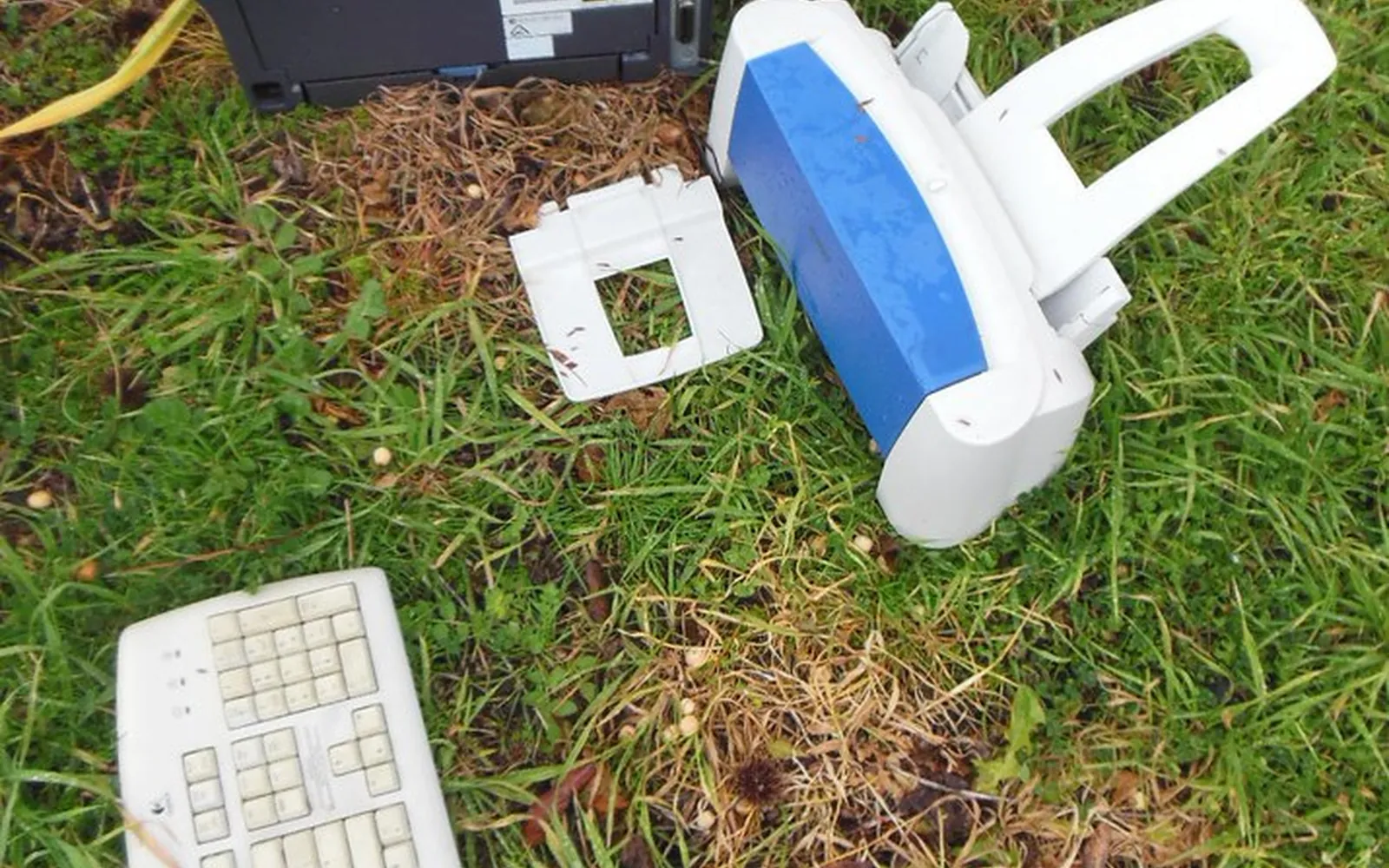
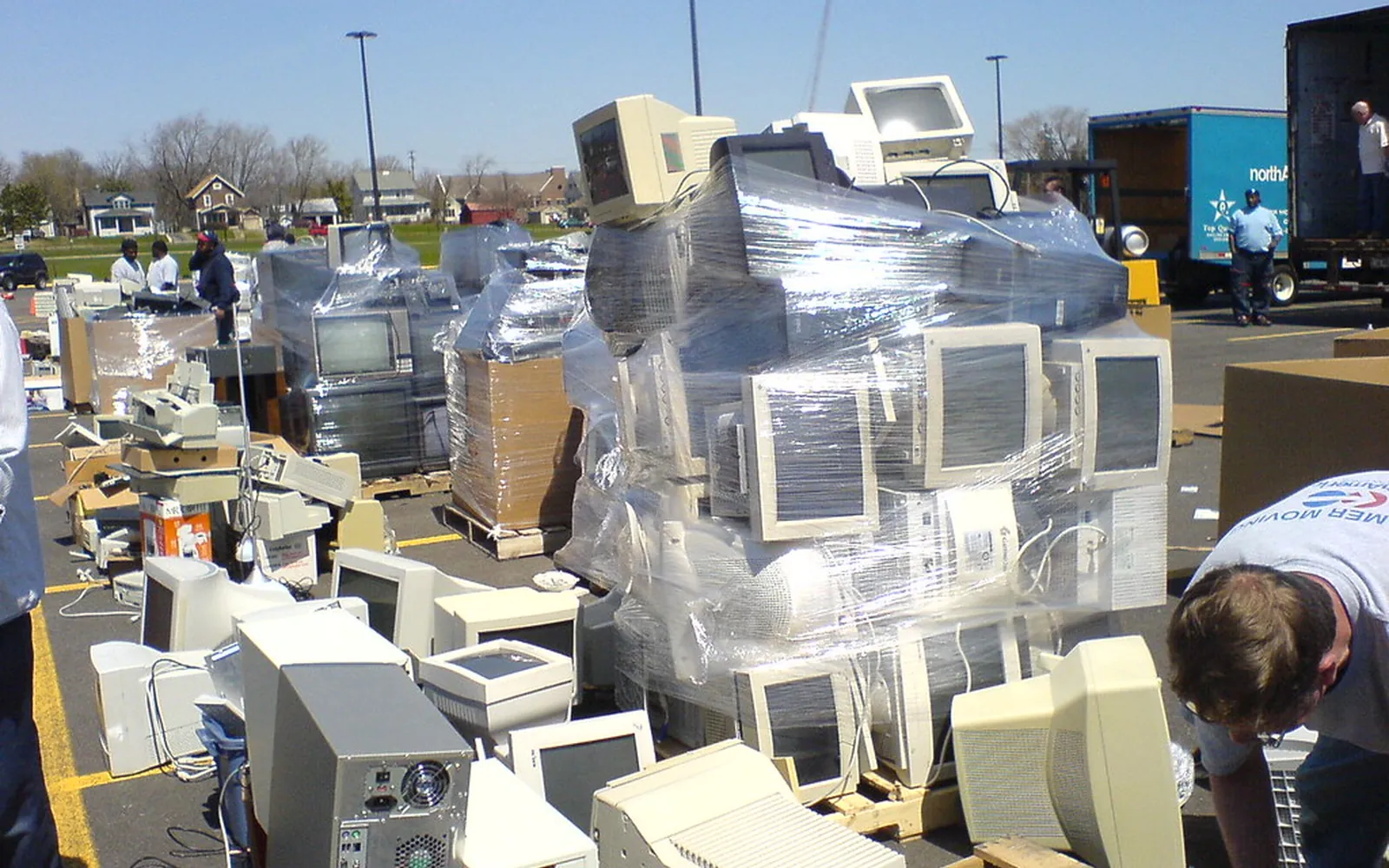
Knowing how to dispose of an old printer properly takes about fifteen minutes, and most of that is clearing the settings. A printer is not just plastic: it contains circuit boards, motors, cables and often a small amount of leftover ink or toner, and it may hold your Wi-Fi password and contact details. Done right, it can go to a new owner or to a recycler that recovers its materials. Done wrong, it ends up in landfill, or on a grass verge like the one in the photo above.
Before anything else: is it really finished?
Some printers are replaced for problems that are cheaper to fix than you might think. If yours prints streaks or missing lines, a clogged print head is a common cause, and our print head clogging guide covers the fixes. If ink costs are the problem, a different cartridge size or source may help; see are XL ink cartridges worth it and third-party printer ink.
If you have decided it has to go, work through the steps below in order.
Step 1: Save anything you want to keep
Some printers store information you might want on the next one:
- Fax speed-dial numbers and contacts. Canon’s manual notes that on fax models you can back up user information and speed-dial numbers to a computer before resetting, and restore them to another Canon printer.
- Scan-to-email or scan-to-folder destinations. Write them down.
- Cloud and subscription accounts. If the printer is linked to a maker’s app, cloud print service or ink subscription, remove it from the account or cancel or transfer the plan, so the next owner cannot use it in your name and you do not keep paying.
Step 2: Clear your data with a factory reset
Printers can hold more than you expect. Canon’s GX7000 series manual says personal data, passwords and security settings may be stored in the printer, and tells you to reset them before repairing, lending, transferring or disposing of it. Typical stored details include:
- your Wi-Fi network name and password,
- email addresses and phone or fax numbers,
- an administrator password,
- recent fax logs or stored jobs on some models.
Look for a reset option called something like “Reset all”, “Restore factory defaults” or “Initialize” in the printer’s control panel, app or built-in web page. On Canon’s GX7000 series the path is Setup, Printer settings, Reset settings, Reset all. Then:
- remove any memory card or USB drive from the printer’s slots,
- remove the printer from your router’s list of trusted devices if you added it there,
- for a business or a printer that handled sensitive documents, read the maker’s data security guidance for that model.
Step 3: Take out ink and toner
Remove the cartridges or toner before the printer goes. They are recycled through a different route from the printer itself, and leftover ink can leak in transit. Our ink cartridge recycling guide explains take-back programmes, drop-off points and how to pack empties.
If you are donating a working printer, in-date cartridges for that model are a useful gift for the next owner. Seal them in a bag.
Step 4: Reuse a working printer
A printer that still works is worth more in use than in a recycling bin.
- Charities, schools and community groups sometimes accept working printers, especially with supplies. Ask first; some will not take older models.
- Sell or give away locally. Be honest about faults, cartridge availability and whether it still gets driver support.
- Family and neighbours. A basic printer can be just what someone needs for occasional forms.
The US EPA notes that donating or recycling electronics conserves natural resources, and tells you to delete personal information from devices before you pass them on.
Step 5: Recycle a broken printer
When reuse is not an option, take it to a proper collection point.
United Kingdom. Retailers selling electrical equipment must give customers a way to dispose of their old household item when they buy a new version of the same thing, either through a free in-store take-back service or an alternative free service, according to GOV.UK. Local household waste and recycling centres also accept small electricals. The Recycle Your Electricals site has a postcode search for drop-off points.
European Union. The EU’s WEEE rules require separate collection of electrical and electronic waste, and many retailers and municipalities run collection points. Check your local council or municipality for the nearest one.
United States. The EPA’s electronics page says manufacturers and retailers offer several ways to donate or recycle electronics and lists finding tools. Many printer makers run recycling programmes; Epson’s, for example, is linked below. Rules vary by state, and some states ban electronics from household trash, so check your state or county waste site.
Elsewhere. Search for “e-waste” or “electronics recycling” plus your city, or ask your local authority.
Unlink accounts and devices too
A factory reset clears the printer, but your other devices and accounts may still remember it:
- Remove the printer from the maker’s app or online account, especially if it was linked to an ink subscription or cloud printing service. Otherwise the next owner may not be able to register it, and you may keep getting alerts.
- Delete the printer from Printers and Scanners on your computers and from your phone’s print service list, so jobs are not sent to a device that is gone.
- Remove any address reservation you made for it in your router.
- Cancel scan-to-email or cloud destinations that pointed at your accounts.
Our guide to securing a home printer lists what a typical Wi-Fi printer stores and why it is worth clearing.
What not to do
- Do not put it in household rubbish or a mixed recycling bin.
- Do not leave it on the street or in a car park. Fly-tipping electronics is illegal in many places and helps nobody.
- Do not break it open to remove parts. Toner in particular is a fine powder that makes a mess if it spills; our ink cartridge recycling guide explains how to handle and clean up toner.
- Do not hand it over with your Wi-Fi password still stored.
Buy the next one with the end in mind
When you choose a replacement, think about how long it will last and how it will be repaired. Our guide to the best printer for home use covers running costs and features, and our eco-friendly printing guide has ways to make the new printer last longer and waste less.
Frequently asked questions
Can I put an old printer in the bin?
You should not. Printers are electrical and electronic equipment, which needs separate collection and treatment. In the EU and UK this is covered by WEEE rules; in the US, the EPA recommends donating or recycling electronics, and some states ban electronics from household trash.
Does a printer store personal information?
It can. Canon's manuals say personal data, passwords and security settings may be stored in the printer, and tell you to reset all settings before disposing of it. Wi-Fi passwords, fax numbers, email contacts and stored jobs are the usual examples.
How do I factory reset a printer?
Look in the settings menu on the printer, its app or its web page for a reset or restore option. On Canon's GX7000 series the path is Setup, Printer settings, Reset settings, Reset all. The name differs by brand and model, so check your manual.
Will a shop take my old printer?
In the UK, retailers must offer a way for customers to return an old electrical item when they buy a new one of the same type, either in store or through an alternative free scheme. Many retailers elsewhere run take-back or recycling programmes. Ask when you buy the replacement.
Should I leave the ink cartridges in the printer?
No. Take them out and recycle them through a cartridge return scheme. Unused, in-date cartridges for the same model can go with the printer if you are donating it, which makes it more useful to the next owner.
Sources
- US EPA: Electronics donation and recycling
- GOV.UK: Electrical waste, retailer and distributor responsibilities
- European Commission: Waste from electrical and electronic equipment (WEEE)
- Recycle Your Electricals (UK)
- Canon GX7000 series online manual: When Repairing, Lending, or Disposing of the Printer
- Epson: Recycling programme
Editorial team
The Printer Co editorial team researches and writes independent guides to home printers, ink and printing costs, using manufacturer documentation, standards bodies and consumer-protection sources.