Costs and eco printing
How to Print Double Sided: Windows, Mac, Phone and Manual
Written by Printer Co editorial team · Updated
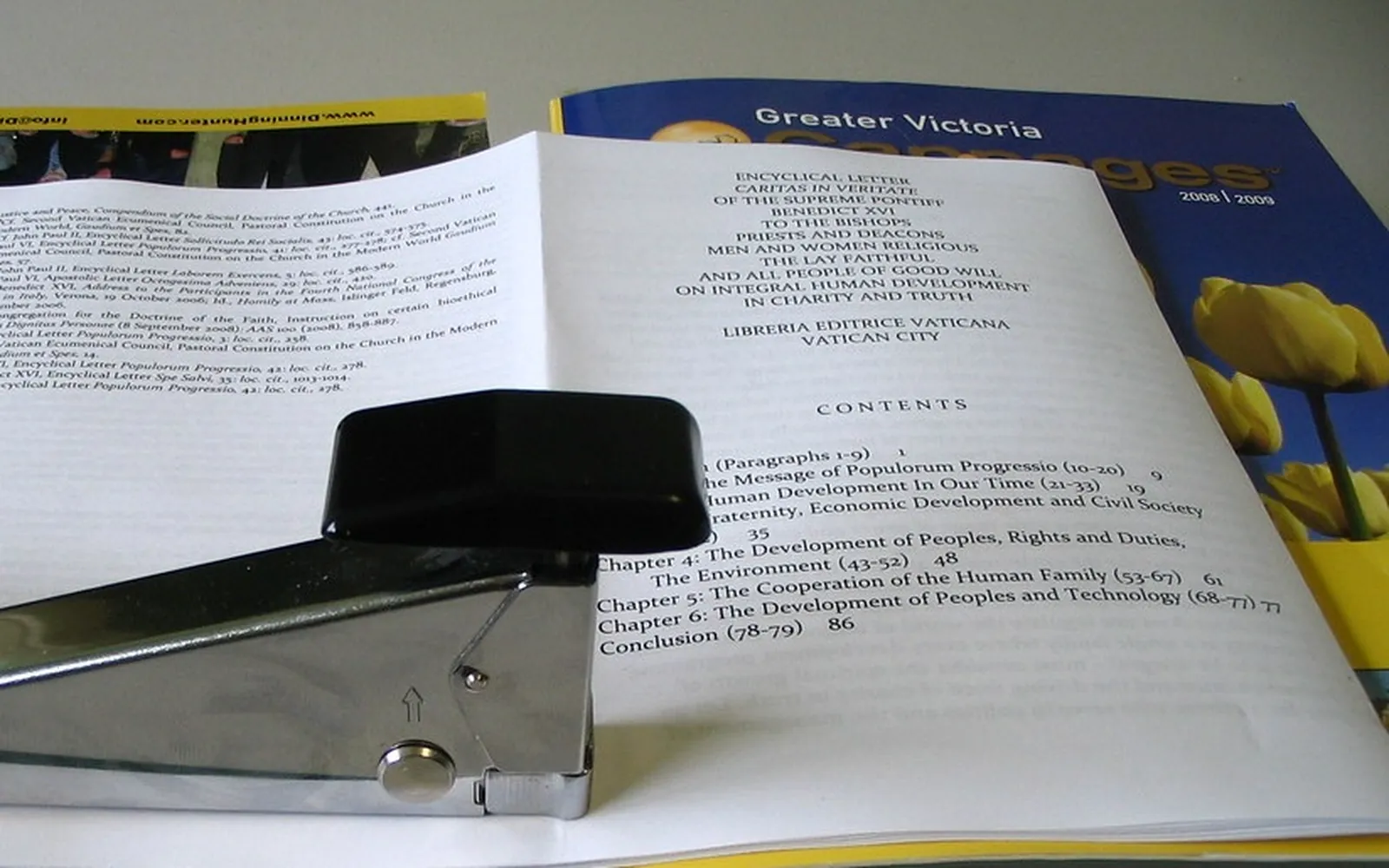
If you want to know how to print double sided, the first question is whether your printer can flip the paper itself. If it can, two-sided printing is one setting in the print dialog. If it cannot, you can still do it by hand with a little care. This guide covers both, step by step for Windows, Mac, iPhone, Android, Word and PDF readers, plus the binding setting that decides whether the back page comes out upside down.
Automatic vs manual duplex
Automatic duplex means the printer prints one side, pulls the sheet back in, turns it over inside the machine and prints the other side. You send the job and collect finished pages.
Manual duplex means the printer prints every first side, then you take the stack out, turn it over and feed it back in for the second sides. Your computer or the printer driver usually tells you when to reload. It takes longer and needs attention, but it works on almost any printer.
How to check if your printer has automatic duplex
- Specifications: look up your exact model on the maker’s website and search the specifications for “automatic two-sided printing”, “auto duplex” or “duplex printing: automatic”. If the sheet says “manual”, the printer does not flip pages itself.
- The print dialog: if a two-sided or print on both sides option appears without the word “manual”, the printer is set up for automatic duplex. Microsoft’s Word help uses this exact check.
- The printer’s menu: many printers with automatic duplex have a two-sided setting for copies or default printing on the control panel.
Do not rely on letters in the model name; makers use naming differently and change it between ranges.
Windows
- Open the document and press Ctrl+P, or choose File > Print.
- Pick your printer. If you see a Print on both sides or Two-sided option, turn it on.
- If not, open Printer properties or Preferences. Look on the Layout, Finishing or Basic tab for two-sided printing, and choose flip on long edge or short edge.
- Click OK, then Print.
To make two-sided printing the default, open Settings > Bluetooth & devices > Printers & scanners, choose the printer, open Printing preferences and set the two-sided option there. If no duplex option appears anywhere, install the full driver from the printer maker; our guide on whether you need printer drivers explains when the built-in driver hides options.
Mac
Apple’s guide gives the steps for current macOS:
- Choose File > Print, or press Command-P.
- In the Double-sided pop-up menu choose On.
- To bind at the top of the page, choose On (Short Edge) instead.
- Click Print.
Older macOS versions show a Two-Sided checkbox in the same place. Apple notes that the option only appears if the printer can print on both sides, and that the options can vary by printer and app.
iPhone and iPad
- Open what you want to print, tap Share or the Actions button, then Print.
- Choose your AirPrint printer.
- In the print options, turn on Double-sided if it is shown.
- Tap Print.
The phone shows only the options the printer reports through AirPrint, so if there is no double-sided switch, the printer most likely lacks automatic duplex. The setup is covered in our guide to print from iPhone.
Android
- Open the document, photo or page and choose Print from the share or three-dot menu.
- Select your printer at the top.
- Tap the small arrow to expand the settings and set Two-sided to long edge or short edge.
- Tap the print button.
Android’s built-in print service and the Mopria Print Service both list two-sided printing as supported, but it depends on the printer’s capabilities. Menu names vary slightly between phone makers. See our guide to print from an Android phone if the printer does not appear.
Word and PDF readers
Word: go to File > Print, then under Settings open Print One Sided and choose Print on Both Sides. If your printer has no automatic duplex, choose Manually Print on Both Sides and Word will prompt you to turn the stack. Another option is to print Only Print Odd Pages, turn the stack, then Only Print Even Pages.
PDF readers: in the print dialog of Adobe Acrobat Reader, browser PDF viewers and Preview, look for a Print on both sides of paper checkbox or a two-sided menu, with a choice of flip on long edge or short edge. If none is shown, use the printer’s properties button, or print odd and then even pages.
Long edge vs short edge
- Long edge (book style): the sheet turns over along its long side. Use it for normal portrait documents, letters and reports.
- Short edge (notepad style): the sheet turns over along its short side, so you flip it upwards. Use it for landscape slides and handouts, calendars and anything stapled at the top.
If the back of every page is upside down, you picked the wrong one. Switch and reprint a two-page test.
Booklets: the short-edge case
A folded booklet is the one everyday job where portrait documents need short-edge flipping. Each sheet carries two booklet pages per side, laid out side by side in landscape, so when the sheet turns over it has to turn on its short edge, or every other spread comes out upside down. Word’s Book fold layout, which Microsoft describes in its booklet instructions, rearranges the pages in the right order for folding; you still need to choose two-sided printing and the right flip direction. Plan page counts in multiples of four, because each sheet holds four booklet pages. Our guide on how to print a booklet covers the full process, including a two-sheet test for manual duplex printers.
The same flip choice appears when you copy: an all-in-one with 2-sided copying may offer a similar layout or flip setting; see how to make a copy on a printer.
Manual duplex: the marked-sheet test
Every printer feeds paper differently, so learn yours once with a single sheet:
- Take one blank sheet and draw a small arrow in pencil near the top edge, pointing to the top, on the side facing up in the tray.
- Load it and print a one-page document.
- See which face the print landed on and whether the top of the print is at the arrow end.
- Write the rule on a sticky note on the printer, for example “printed side up, top edge in first”.
Then, for a real job: print the first sides, wait for them to finish, remove any blank sheets left in the tray, and reload the printed stack following your note. Most drivers print the sides in an order that keeps pages matched; if the order comes out reversed, look for a reverse order option in the print dialog.
Avoiding curl, smudges and jams
- Let pages settle. Inkjet pages need a moment to dry before the second pass, and laser pages come out warm and slightly curled. Let the stack cool, then fan it and tap it square.
- Flatten curl. Reload with any curl facing the way your printer handles best, often curl down, or flex the stack gently the opposite way.
- Use the right paper. Very thin paper shows through and jams more. Slightly heavier, smooth copy paper works better on both sides; see our guide to the best paper for a home printer.
- Skip duplex on special media. Labels, envelopes, glossy photo paper and transparencies should be printed on one side only, and stay within the paper weight range in your manual. Our guide on how to print envelopes at home covers loading and settings for envelopes and label sheets.
- Print small batches of manual duplex, so a misfeed does not waste a whole report.
How much paper you save
A document of several pages uses about half the sheets when printed on both sides. ENERGY STAR’s imaging equipment criteria require automatic duplexing for certain printers and multifunction devices, and certified printers in that group ship set to print double-sided by default. ENERGY STAR also notes that a typical office worker uses roughly 10,000 sheets of copy paper a year, which shows how quickly the savings add up. At home, setting two-sided as your default is the easiest saving there is, and our eco-friendly printing at home guide lists the next habits to try. Fewer sheets also cut your cost per page in paper, though ink or toner use stays the same.
Frequently asked questions
How do I know if my printer can print double sided automatically?
Look for automatic two-sided printing, auto duplex or automatic duplexing in the printer's specifications on the maker's site or in the manual. You can also open the print dialog: if it offers a two-sided or print on both sides option without the word manual, the printer usually duplexes on its own.
What is the difference between long edge and short edge?
Long edge binding flips the page like a book, so the back of a portrait page reads the same way up when you turn it sideways. Short edge binding flips it like a notepad or wall calendar, turning the page upwards. For ordinary portrait documents choose long edge.
Why is the back side printed upside down?
The binding edge does not match how you turn the page. Switch between long edge and short edge, or with manual duplex, rotate the stack 180 degrees before feeding it back in.
Can I print double sided from my phone?
Yes, if the printer supports automatic two-sided printing and reports it to the phone. On iPhone and iPad the option appears in the print options; on Android it appears in the print settings of the system print service. If it is missing, the printer may only support manual duplex.
Which paper should I not print on both sides?
Avoid duplex on envelopes, labels, glossy photo paper and transparencies, and on paper outside the weight range in your printer's manual. Very thin paper also shows the other side through.
Sources
- Apple Support: Print double-sided pages with your Mac
- Apple Support: Use AirPrint to print from your iPhone or iPad
- Microsoft Support: Print on both sides of the paper (duplex printing) in Word
- Mopria Alliance: print and scan support FAQ (two-sided printing on Android)
- ENERGY STAR: Imaging Equipment
- Microsoft Support: Create a booklet or book in Word
Editorial team
The Printer Co editorial team researches and writes independent guides to home printers, ink and printing costs, using manufacturer documentation, standards bodies and consumer-protection sources.