Home printers
How to Print a Booklet at Home on a Regular Home Printer
Written by Printer Co editorial team · Updated
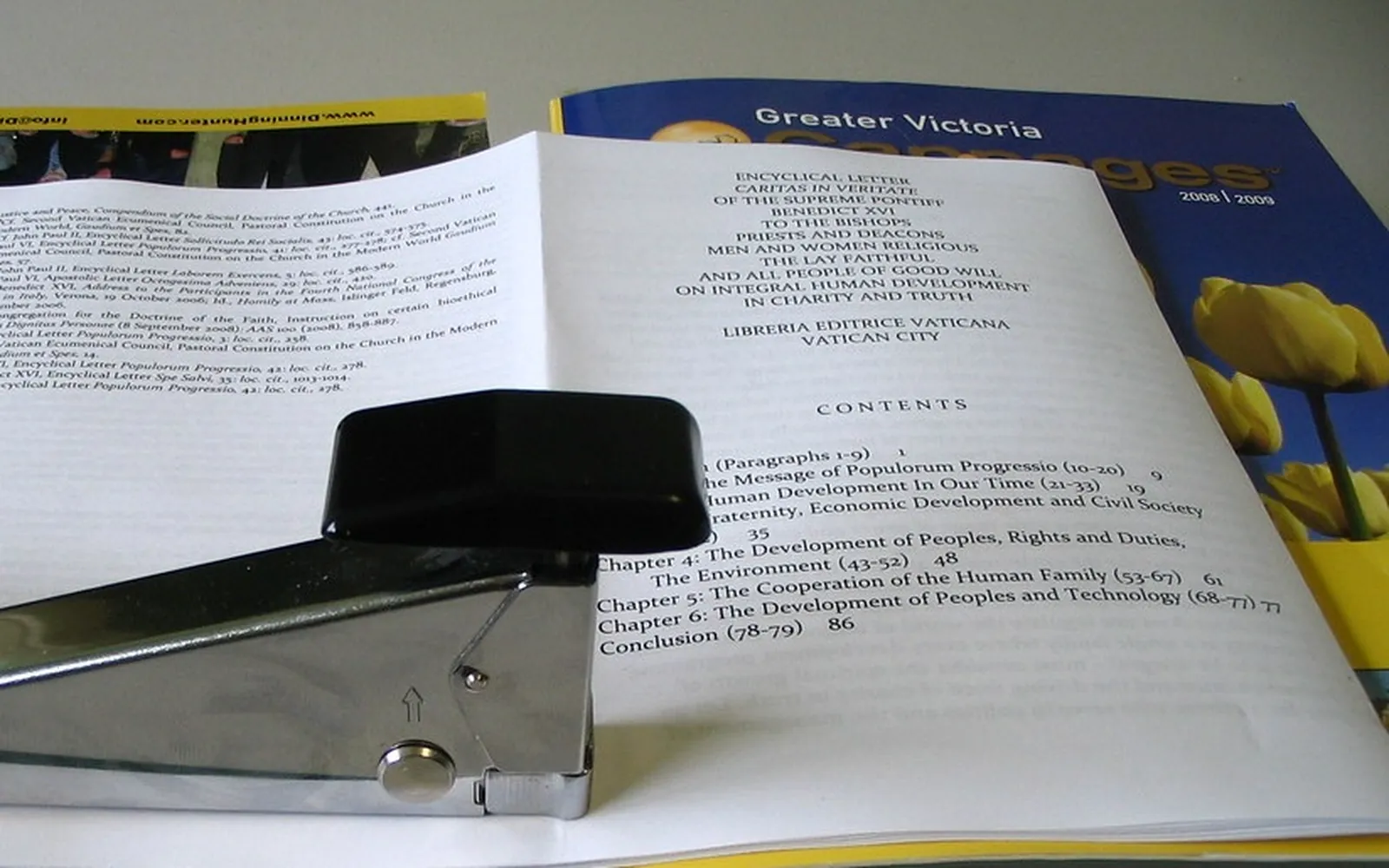
A school programme, a recipe collection, a club newsletter, a short zine: all of them look better as a folded, stapled booklet than as a stack of loose pages. Knowing how to print a booklet at home is mostly about letting the software arrange the pages, then getting the paper to flip the right way. You do not need a special printer. This guide covers the two main methods, the page count rule, and how to fold and bind a neat result.
How a booklet is laid out
A booklet is made from sheets folded in half. Each sheet carries four booklet pages: two on the front and two on the back, side by side. Because the sheets nest inside each other, the pages cannot print in normal order. For an 8-page booklet on two sheets, the outer sheet carries pages 8 and 1 on one side and 2 and 7 on the other; the inner sheet carries 6 and 3, then 4 and 5.
You do not have to work that out yourself. Both Word’s Book fold layout and printer booklet modes rearrange the pages automatically. Microsoft describes Book fold as setting you up to print in the correct order, ready for folding and binding.
Two consequences:
- The booklet is half the paper size. Microsoft notes the final size of the booklet is half the paper size. A4 sheets give A5 booklets; US Letter gives 5.5 x 8.5 inch booklets.
- Pages come in fours. Plan the content as a multiple of four pages. Blank pages at the end look odd, so use spare pages for a title page, a contents list or notes.
Method 1: Word’s Book fold layout
Microsoft’s steps for Word on Windows:
- Go to Layout, select Margins, then Custom Margins.
- Next to Multiple pages, choose Book fold. The orientation changes to landscape automatically.
- For a long document, set Sheets per booklet to print it as several smaller booklets that you can bind together afterwards.
- Increase the Gutter to reserve space on the inside fold for binding.
- On the Paper tab, choose the paper size you will print on.
Microsoft recommends setting this up before you write, because images and tables may need adjusting after the layout changes. It also notes that creating a booklet is not currently possible in Word for the web; use the desktop app.
To print, go to File, Print. If your printer prints both sides automatically, choose the booklet or two-sided option offered. If not, choose Manually Print on Both Sides; Word prints one side, then prompts you to feed the pages back in. Microsoft advises flipping the sheets on the short edge according to your printer’s instructions so pages do not print upside down.
Method 2: the printer driver’s booklet mode
Some printer drivers can turn any document into a booklet, whatever program it comes from. Brother’s Windows driver is an example: in the printing preferences, on the Basic tab, open 2-sided / Booklet and choose Booklet, then use 2-sided Settings to pick the binding side. Brother explains that the pages are arranged in the correct order so you can fold the output in the middle without reordering anything.
Brother’s driver also offers a Booklet Printing Method: All Pages at Once, which prints one booklet with four pages per sheet, or Divide into Sets, which splits a long document into smaller nested sets of 1 to 15 sheets that are easier to fold. A Binding Offset option adds space at the fold, the same idea as Word’s gutter.
If your driver has no booklet mode, use Word or another app that offers one, or print to a PDF and use a PDF reader’s booklet option.
Getting duplex right
Most booklet failures are flipping mistakes.
- Automatic duplex: booklet modes normally set short-edge binding for you. Check one test sheet anyway.
- Manual duplex: print the first side of just two sheets, mark the top corner of the stack with a pencil, and reinsert them as your printer expects. Print the second side and check the order. Once you know the right way, print the full booklet.
Our guide to how to print double-sided explains short-edge and long-edge flipping and how to find which way your printer feeds paper.
Paper and covers
- Inside pages: ordinary 75 to 90 gsm (20 to 24 lb) paper folds cleanly. Thicker paper makes a fat spine on long booklets.
- Cover: a heavier matte sheet looks better and protects the pages, but check your printer’s maximum paper weight in the manual, and print the cover as a separate sheet if needed.
- Brother’s booklet guide also advises straightening curled paper and using regular paper rather than bond paper, which may wrinkle if thin.
See the best paper for a home printer for weights and finishes.
Folding and stapling
- Stack the sheets in printed order, check page 1 is on the outside.
- Fold in half as one stack (for up to a few sheets) or fold each sheet and nest them. Crease firmly with a ruler or the back of a spoon.
- Staple through the fold from the outside, with two staples placed about a quarter of the way in from the top and bottom. A long-reach stapler makes this easy; otherwise open the booklet flat on a thick piece of card and push the staples through, then fold the legs over by hand.
- Trim the open edge with a craft knife and ruler if the inner pages stick out on a thick booklet.
Saving ink on booklets
Booklets of text print well in black only and at standard quality. Keep colour for the cover. For drafts, print a single test copy before running a batch, and check the printer cost per page if you plan to print many copies; a print shop may be cheaper for large runs.
Frequently asked questions
How do I print a booklet in Word?
Microsoft's steps: go to Layout, Margins, Custom Margins, and set Multiple pages to Book fold; Word switches to landscape. Set Sheets per booklet if you want several smaller booklets, increase the Gutter for binding, pick the paper size, then print on both sides. If your printer prints both sides automatically, choose Booklet under Two-sided where offered.
Why are my booklet pages in the wrong order?
Usually the document was printed as normal pages instead of in booklet layout, or the sheets were flipped on the long edge instead of the short edge. Use Book fold or the driver's booklet mode, and flip on the short edge as your printer's instructions describe.
How many pages should a booklet have?
A multiple of four, because each folded sheet holds four pages. If your content is 10 pages, plan for 12 and use the extra pages for a title page, contents or notes.
Can I print a booklet without a duplex printer?
Yes. Word offers Manually Print on Both Sides and prompts you to feed the pages back in. Test with two sheets first so you know which way to reinsert the paper on your printer.
What paper is best for a booklet?
Ordinary 75 to 90 gsm (20 to 24 lb) paper folds easily for the inside pages. A heavier sheet makes a sturdier cover, but check your printer's maximum paper weight and print the cover separately if needed.
Sources
Editorial team
The Printer Co editorial team researches and writes independent guides to home printers, ink and printing costs, using manufacturer documentation, standards bodies and consumer-protection sources.