Home printers
How to Print a Shipping Label at Home on a Regular Printer
Written by Printer Co editorial team · Updated
Selling something online, returning a parcel or posting a gift usually ends with the same request: “print your label”. You do not need a special label printer for that. This guide explains how to print a shipping label at home on the ordinary inkjet or laser printer you already own, so it scans first time and does not come back to you. The examples use USPS guidance because it is detailed and public, but the same principles apply to other carriers and to marketplace labels.
What you need
- A printer that prints sharp black. USPS recommends a laser printer or a high-quality inkjet, and says inkjets should print at 600 dpi. Faint, streaky or dotty output may not scan reliably. If you are unsure what dpi means for your printer, see printer dpi explained.
- Paper. USPS says plain white 8.5 x 11 inch paper is acceptable, although self-adhesive labels are recommended. Plain paper needs to be trimmed and taped; adhesive label sheets just peel and stick.
- A PDF viewer. Most labels are delivered as PDFs. USPS mentions that its first print needs Adobe Acrobat Reader, and that browser pop-up blockers can get in the way of the confirmation page.
- Clear packing tape for plain-paper labels.
Plain paper or label sheets?
Plain paper is the cheapest option and is fine for occasional parcels. Its drawbacks are the trimming and the tape, which must not cover the barcodes.
Self-adhesive sheets are quicker and look neater. You can buy full-sheet labels and trim them, or sheets with two half-page labels, which match the “two labels per page” layout that some services offer. Whatever you buy, choose labels made for your printer type: inkjet labels for inkjets and laser labels for lasers. Laser printers fuse toner with heat, and the wrong label stock can curl or leave adhesive inside the printer. Our labels in Word guide has more on choosing label sheets and lining them up.
If you print dozens of parcels a week, sheets and ink add up and a dedicated thermal label printer starts to make sense. For a few parcels a month, the home printer is enough.
Print at the right size
Most carrier labels are designed at 4 x 6 inches. The barcode width and spacing matter to the scanners, so the label must print at the size it was designed.
- Open the label PDF.
- In the print window choose Actual size or 100% scale. Avoid Fit to page or Shrink oversized pages. Our guide on fit to page vs actual size explains why scaling quietly changes measurements.
- Choose Letter or A4 to match the paper in the tray.
- If the service offers it, choose two labels per page to use both halves of a sheet. USPS describes this option (each label 4 x 6.5 inches on one 8.5 x 11 sheet) and notes it is not available when a customs form is needed.
USPS also notes that if its online labels print too small, desktop font size or display settings can be the cause.
Make the barcode easy to scan
Barcodes are the part that matters most. A clean, high-contrast barcode is read automatically; a smeared one may need manual handling or may not be read at all.
- Print in black, on white paper. Coloured or recycled paper with flecks lowers contrast.
- Use the normal or high quality setting, not draft.
- Check that the black is solid. If the printer shows streaks or gaps, run a nozzle check or replace the cartridge before printing labels. Our guide to print head clogging covers nozzle checks.
- Let inkjet labels dry for a minute before handling or taping, so the barcode does not smear.
Attach the label properly
USPS gives clear placement rules that are good practice for any carrier:
- Put the label flat on one face of the parcel, usually the largest. Do not fold it over an edge or corner.
- Do not bend, fold or overlap labels.
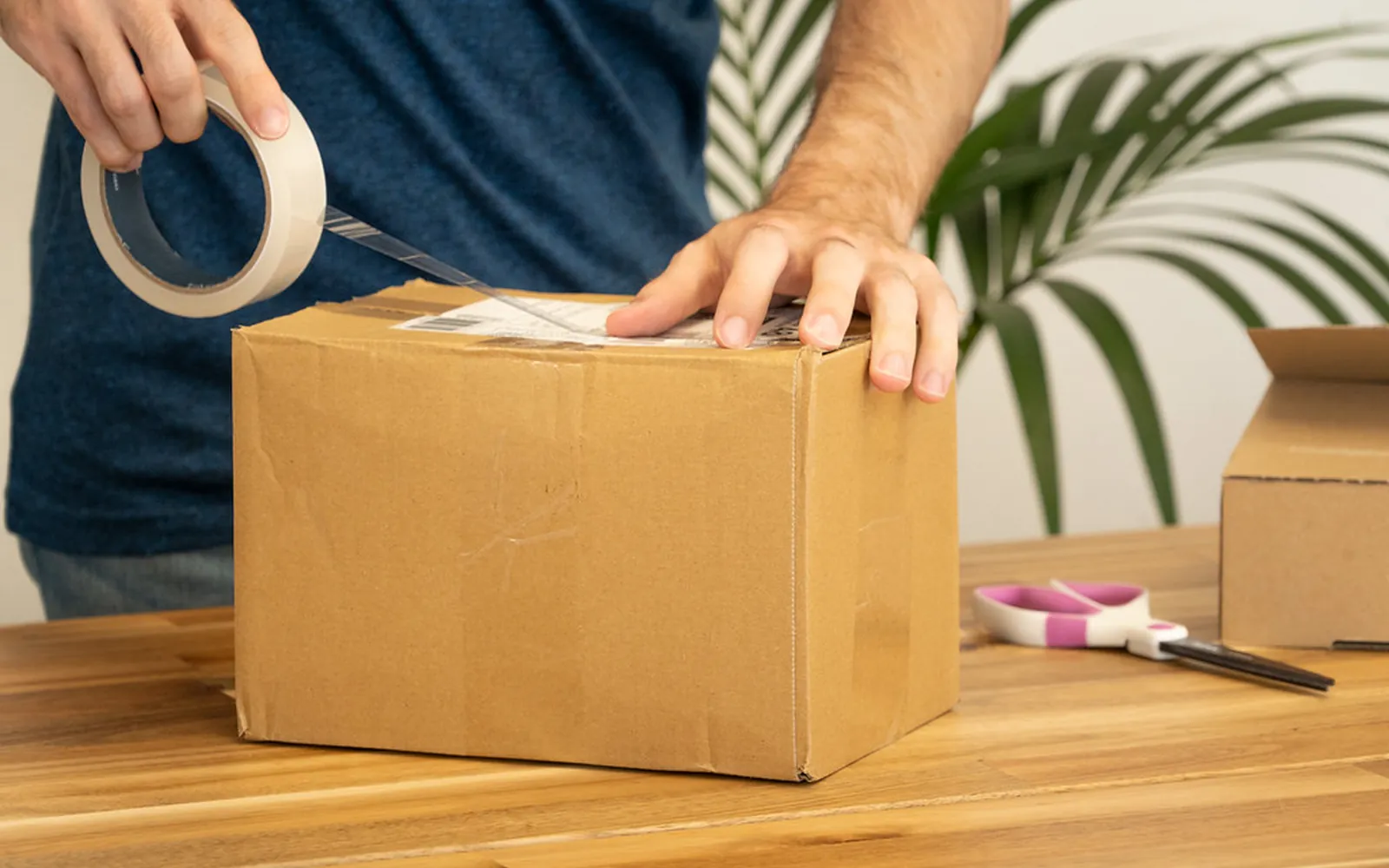
- If you print on plain paper, trim it to the label border and secure it with clear shipping tape around the edges.
- Do not tape over barcodes or the area marked for postal use: tape can make the label hard for machines to read. If you want to protect the label from rain, tape the edges only, or use a clear adhesive label pouch.
- Remove or cover old labels and barcodes on a reused box, so the scanners only see the new one.
For letters and large envelopes, USPS says the label goes in the upper right corner with the address parallel to the longest side. Our guide to printing envelopes at home covers addressing envelopes directly.
Mistakes, reprints and refunds
A paid label is tied to a unique tracking or label number. USPS spells out three rules that are typical of carriers:
- Do not alter a printed label. If something is wrong, print a new label and ask for a refund of the unused one.
- Do not reuse or photocopy a label. Duplicates should be thrown away; postage is valid once.
- Ship on the date shown. USPS creates an electronic record for the ship date you selected, and labels mailed late may be returned. It also limits how long you can reprint or save the PDF.
USPS says refunds for unused labels can be requested in Shipping History within 30 days of creating the label, with a longer manual route up to 60 days. Other carriers and marketplaces have their own refund windows, so check them before printing several labels.
Return labels and marketplace labels
Return labels from online shops and labels bought through selling platforms follow the same rules, with a few differences worth knowing:
- The file may not be a 4 x 6 label. Some return portals produce a full page with instructions, a packing slip and the label together. Print the whole page at 100%, then cut out only the label part and put the slip inside the box.
- Read which parts go where. Some returns need a reference number written on the outside or a slip inside; the instructions on the page say which.
- Check the deadline. Return labels often have a “use by” date, after which the shop may not accept the parcel.
- Keep a copy. Save the PDF or a photo of the label until the parcel is delivered or the refund arrives, so you have the tracking number if anything goes wrong.
If a label comes as an image in an email rather than a PDF, our guide on how to print an email explains how to print just the attachment instead of the whole message.
No printer? Other options
USPS Label Broker gives you a QR code and an ID; a Post Office clerk scans it and prints the label for you. Many carriers and return portals offer a similar “print in store” option. You can also save the label as a PDF and print it at a library or print shop; our guide on how to print to PDF explains how to keep a clean copy.
Quick checklist
Right paper for your printer, 100% scale, sharp black barcode, label flat on one face, tape on the edges only, one label per parcel. Follow that and a home printer produces labels that travel as well as any printed at a shop.
Frequently asked questions
Can I print a shipping label on regular paper?
Usually yes. USPS, for example, says plain white 8.5 x 11 inch paper is acceptable for Click-N-Ship labels, although it recommends self-adhesive labels. Other carriers and marketplaces have their own instructions, so check the help page of the service you bought the label from.
What size is a shipping label?
Most online labels are designed for 4 x 6 inches. On a normal sheet of paper the label prints at that size with white space around it, or two labels share one sheet when the service offers a two-per-page option.
Why is my shipping label printing too small?
The print window is usually scaling it down. Choose actual size or 100% scale instead of fit to page or shrink to fit. USPS also suggests checking your desktop font size or display settings if its labels print too small.
Can I put clear tape over a shipping label?
You can secure the edges with clear tape, but avoid taping over barcodes and the postal-use area: tape can make labels hard for scanning equipment to read. Never use opaque or patterned tape over any part of the label.
Can I photocopy or reuse a shipping label?
No. Paid postage is tied to a unique label number that can be used once. USPS says duplicate labels should be discarded and that using one on purpose may be treated as fraud. Print a new label for each parcel.
What if I do not have a printer?
Some carriers let you show a QR code at a counter and have staff print the label. USPS calls this Label Broker. Many shipping services and marketplaces offer something similar.
Sources
Editorial team
The Printer Co editorial team researches and writes independent guides to home printers, ink and printing costs, using manufacturer documentation, standards bodies and consumer-protection sources.